> For the complete documentation index, see [llms.txt](https://docs.balkan.id/llms.txt). Markdown versions of documentation pages are available by appending `.md` to page URLs; this page is available as [Markdown](https://docs.balkan.id/lifecycle-management/step-up-mfa-for-sensitive-requests.md).
# Step Up MFA for Sensitive Requests
{% hint style="warning" %}
Step-Up MFA must be enabled for your tenant before any of the sensitivity controls below take effect. Similarly, Okta Verify auth must be enabled for your tenant before you may use it. If you'd like to use these features, please contact your BalkanID support contact.
{% endhint %}
Step-Up MFA adds an extra identity verification step before high-risk access request actions are completed — creating a request, approving it, or delegating it. When an action touches an entity marked as **sensitive**, the requester or approver is prompted to re-verify their identity with a second factor before the action goes through. This gives tenants an extra layer of assurance that sensitive access changes are being made by the person they appear to come from, not just a live session that happens to still be open.
{% hint style="info" %}
Step-Up MFA is separate from your regular sign-in MFA. It's a short-lived, additional check required only at the moment a sensitive action is taken.
{% endhint %}
### Prerequisites & Permissions
| Capability | Who can do it |
| ----------------------------------------------------------------------- | ------------------------------------------------------------------------------- |
| Enable Step-Up MFA for the tenant and require it for sensitive requests | Tenant Admins (**Access Requests > Settings**) |
| Mark a custom insight as "sensitive" | Users who can manage **Rules & Insights** (e.g., Risk Managers, Administrators) |
| Choose a personal default verification method | Any user, from their own **Profile** page |
### How It Works
* **Sensitive entities**: Any entity (a group, role, resource, etc.) can be flagged as sensitive by attaching a custom insight with **Is Sensitive** enabled. Access requests that touch these entities are treated as high-risk.
* **Verification methods**: Users can verify with:
* **Native MFA** — currently support TOTP, a one-time passcode from any authenticator app of your choice (the built-in method, always available).
* [**Okta Verify**](https://help.okta.com/en-us/content/topics/mobile/okta-verify-overview.htm) — for tenants with an Okta integration, either a push notification to the Okta Verify app or a 6-digit TOTP code, if the user has an identity in Okta.
* **Verification session**: Once verified, the check is valid for **the configured duration**. Additional sensitive actions within that window don't prompt again.
* **Default method**: Each user can set a preferred verification method under their profile so they aren't asked to choose every time.
### Step-by-Step Guide
#### 1. Turn on Step-Up MFA for your tenant
1. Go to **Access Requests**.
2. Select the **settings gear icon** in the top right.
3. In **Access Request Preferences**
1. toggle on **Require Step-Up MFA for Sensitive Requests**
2. enter the TTL duration that you want for your tenant.
4. Select **Save Preferences**.
{% hint style="warning" %}
Once enabled, MFA is required to create, approve, or delegate sensitive access requests.
* Session Validity: Verified sessions last for the configured duration (default: 10 minutes; maximum: 30 minutes).
* One-Time Use: Setting the duration to `0` seconds enforces single-use or a 1-minute limit, whichever comes first.
* Native MFA Limitation: The native MFA method does not support one-time use or arbitrary durations, and will automatically round up to the nearest non-zero minute.
{% endhint %}
#### 2. Mark entities as sensitive
Step-Up MFA is only triggered for entities covered by a **sensitive** custom insight.
1. Go to **Rules & Insights > Custom Insights**.
2. Select **Create Custom Insight** (or edit an existing one).
3. Define the entity filters that identify the entities you consider sensitive.
4. Check **Is Sensitive**.
5. Save the insight.
Marking a custom insight as sensitive
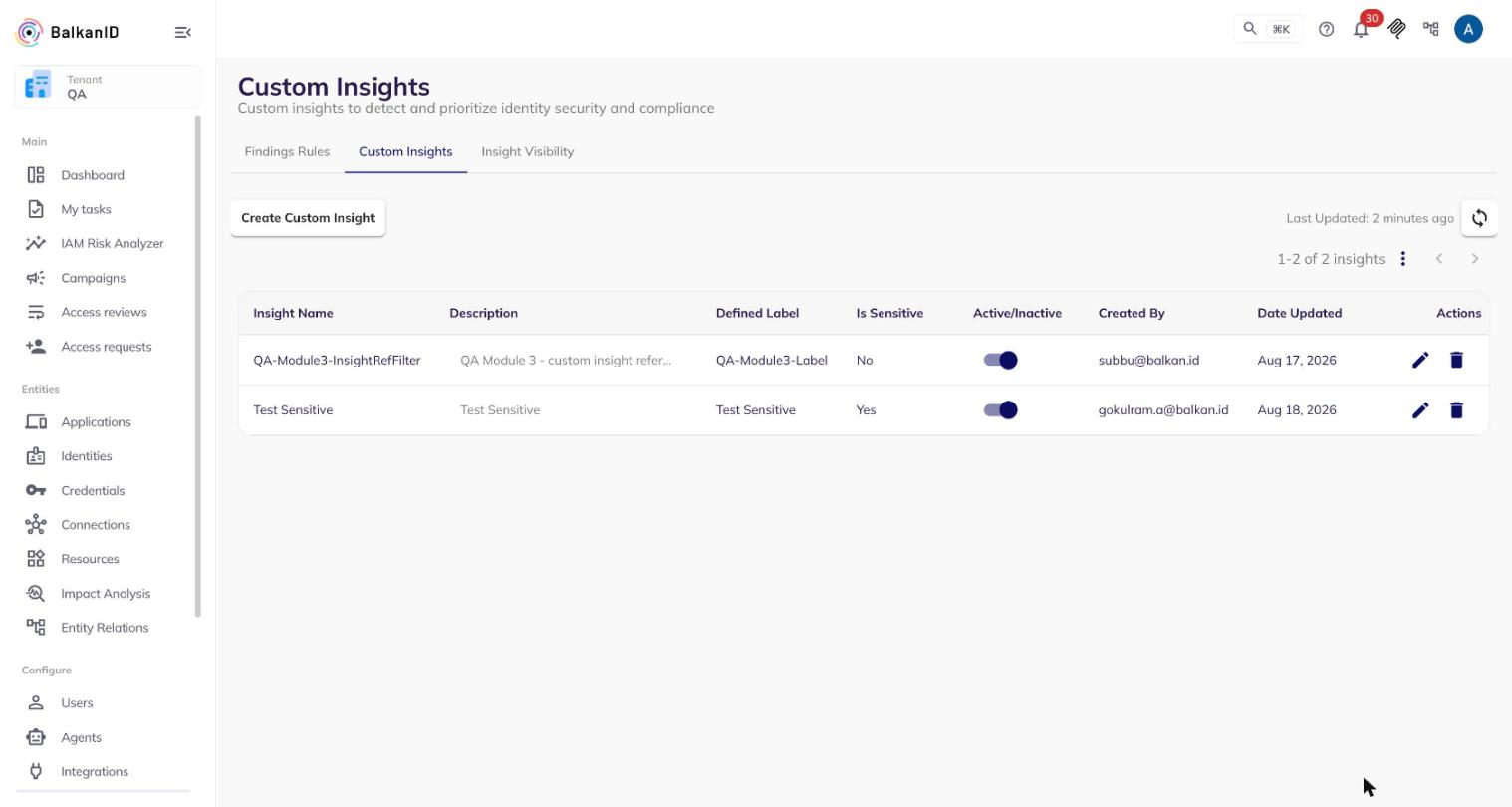
The **Custom Insights** table shows an **Is Sensitive** column so you can see at a glance which insights will trigger MFA.
Reviewing which custom insights are marked sensitive
{% hint style="info" %}
It can take some time for the system to re-evaluate entities and apply a newly-sensitive insight. Give it a few minutes before testing.
{% endhint %}
#### 3. Choose your default verification method (optional)
By default, users verify with our **Native MFA method**. If your tenant has an Okta integration and you have an identity there, you can set Okta Verify as your default instead.
1. Open your **Profile** (account menu > **Profile**).
2. Scroll to **Step-up verification**.
3. Under **Default method**, choose **Native** or an available Okta Verify method.
4. If you chose an Okta Verify method, select which of your Okta accounts it should use under **Okta Verify account**.
5. Select **Save**.
{% hint style="info" %}
Okta Verify only appears as an option if your tenant has Okta connected as an integration and your user profile is linked to an identity in it.
{% endhint %}
#### 4. Verifying your identity when prompted
When you create, approve, or delegate a request involving a sensitive entity, a **Verify it's you** dialog appears:
* **Native**: Complete the one-time passcode challenge from your authenticator app.
* **Okta Verify (TOTP)**: Enter the 6-digit code from the Okta Verify app.
* **Okta Verify (Push)**: A push notification is sent automatically to your device — approve it there. If you don't receive it, select **Resend push notification**.
If more than one method is available to you, you can switch between them using the tabs at the top of the dialog. Once verification succeeds, your original action completes automatically.
### FAQs / Edge Cases
**What happens if I don't complete verification?** The action (creating, approving, or delegating the request) is blocked until verification succeeds. Nothing is applied in the meantime.
**How long does a verification last?** 10 minutes. Any further sensitive actions within that window won't prompt again; after it expires, you'll be asked to verify once more.
**Can I use a third-party authenticator other than Okta Verify?** Currently, Native MFA TOTP and Okta Verify are supported. Let us know if you're looking for additional providers.
**Does this apply to bulk approvals?** Yes — if any item in a bulk approval touches a sensitive entity, Step-Up MFA is enforced the same way as for a single request.
**I don't see the "Is Sensitive" option on my custom insight.** Confirm with your BalkanID contact that Step-Up MFA is enabled for your tenant. The option only appears once the feature is turned on.
---
# Agent Instructions
This documentation is published with GitBook. GitBook is the documentation platform designed so that both humans and AI agents can read, navigate, and reason over technical content effectively. Learn more at gitbook.com.
## Querying This Documentation
If you need additional information that is not directly available in this page, you can query the documentation dynamically by asking a question.
Perform an HTTP GET request on the current page URL with the `ask` query parameter, and the optional `goal` query parameter:
```
GET https://docs.balkan.id/lifecycle-management/step-up-mfa-for-sensitive-requests.md?ask=&goal=
```
`ask` is the immediate question: it should be specific, self-contained, and written in natural language.
`goal` is optional and describes the broader end goal you are ultimately trying to accomplish on behalf of the user. GitBook uses it to tailor the answer towards what is most useful for that goal.
The response will contain a direct answer to the question and relevant excerpts and sources from the documentation.
Use this mechanism when the answer is not explicitly present in the current page, you need clarification or additional context, or you want to retrieve related documentation sections.