> For the complete documentation index, see [llms.txt](https://docs.balkan.id/llms.txt). Markdown versions of documentation pages are available by appending `.md` to page URLs; this page is available as [Markdown](https://docs.balkan.id/lifecycle-management/access-requests/new-identity-access-request.md).
# New identity access request
The New Identituy Access Request System offers three primary functions:
* **Identity Creation**
* **Identity Assignment**
* **Identity Deletion**
Each function can be easily accessed through a simple selection process using radio buttons on our interface. Detailed steps on how to perform each action are provided below.
### **Identity Creation**
Creating a new identity is a straightforward process that allows you to create new identities in the existing applications.
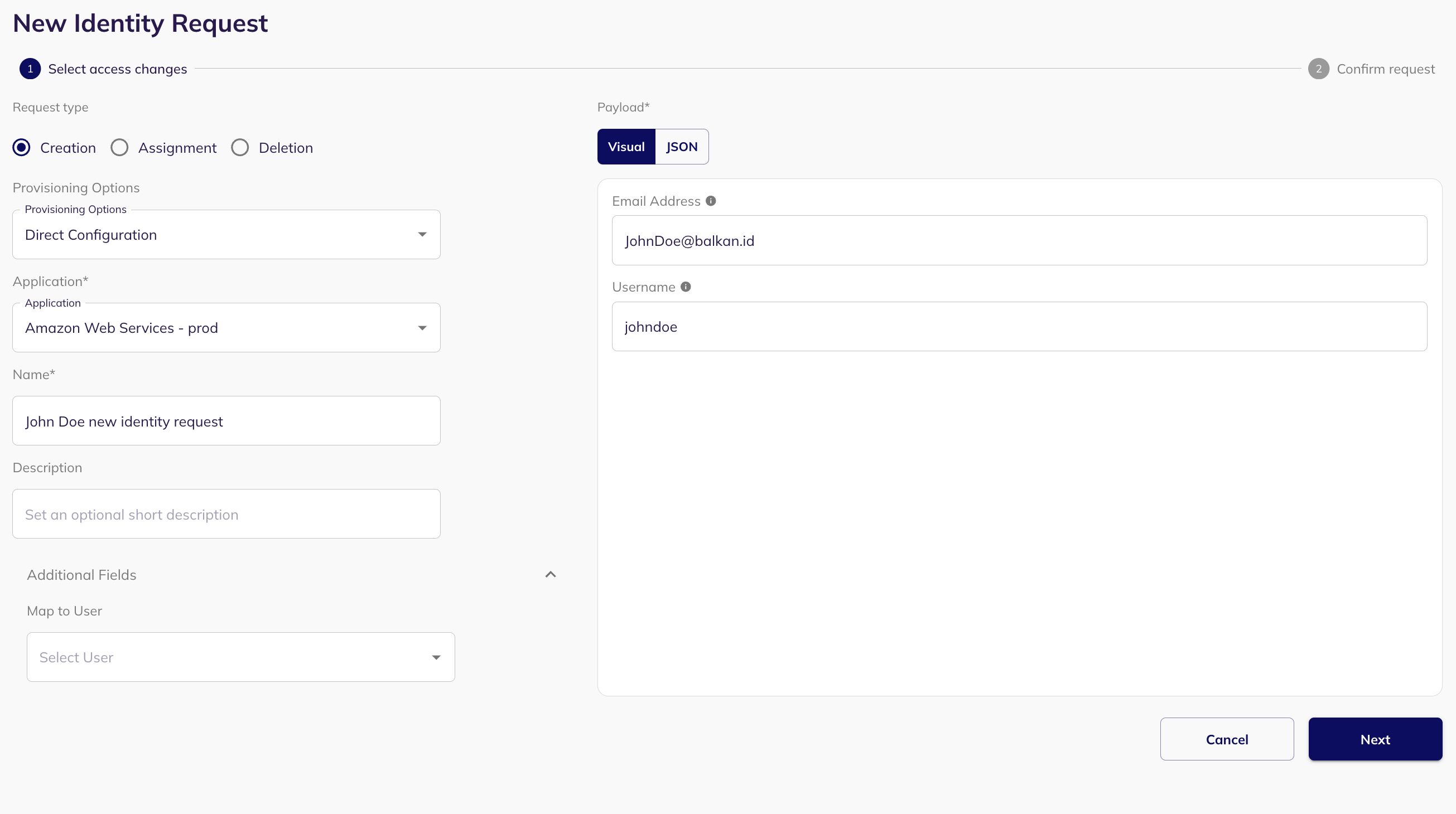
1. **Select Creation:** Choose the "Creation" radio button to initiate the identity creation process.
2. **Choose a Provisioning Option:** Select a provisioning option.
3. **Choose an Application:** Select the application where you want to create a new identity.
4. **Choose a User Account Type:** Select from the list of user account types that are supported for the application.\
**Select a name:** Select a name for the new access request.
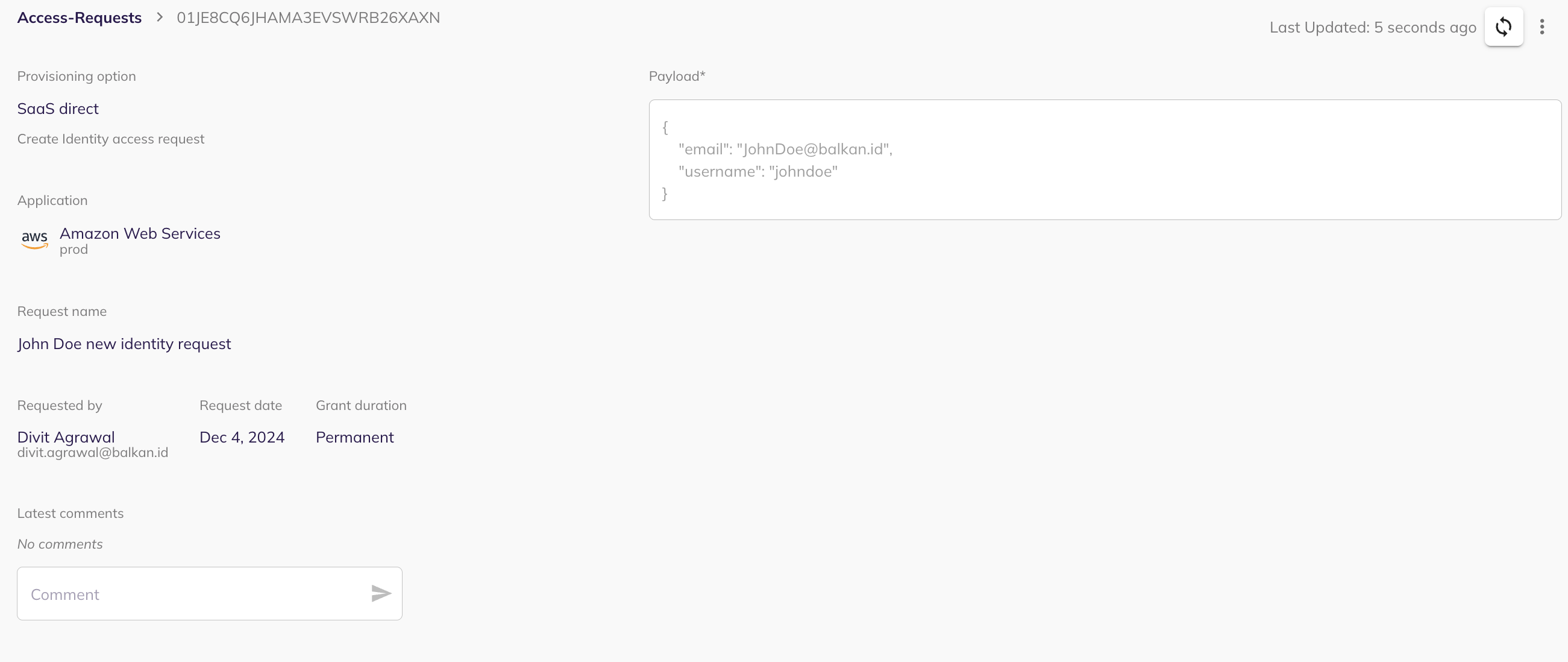
5. **Fill the Payload:** Upon selecting an application, a form (payload) will appear on the page. Complete this form with the necessary information to create the new identity.\
*(Optional)* Map the new identity with an existing user.
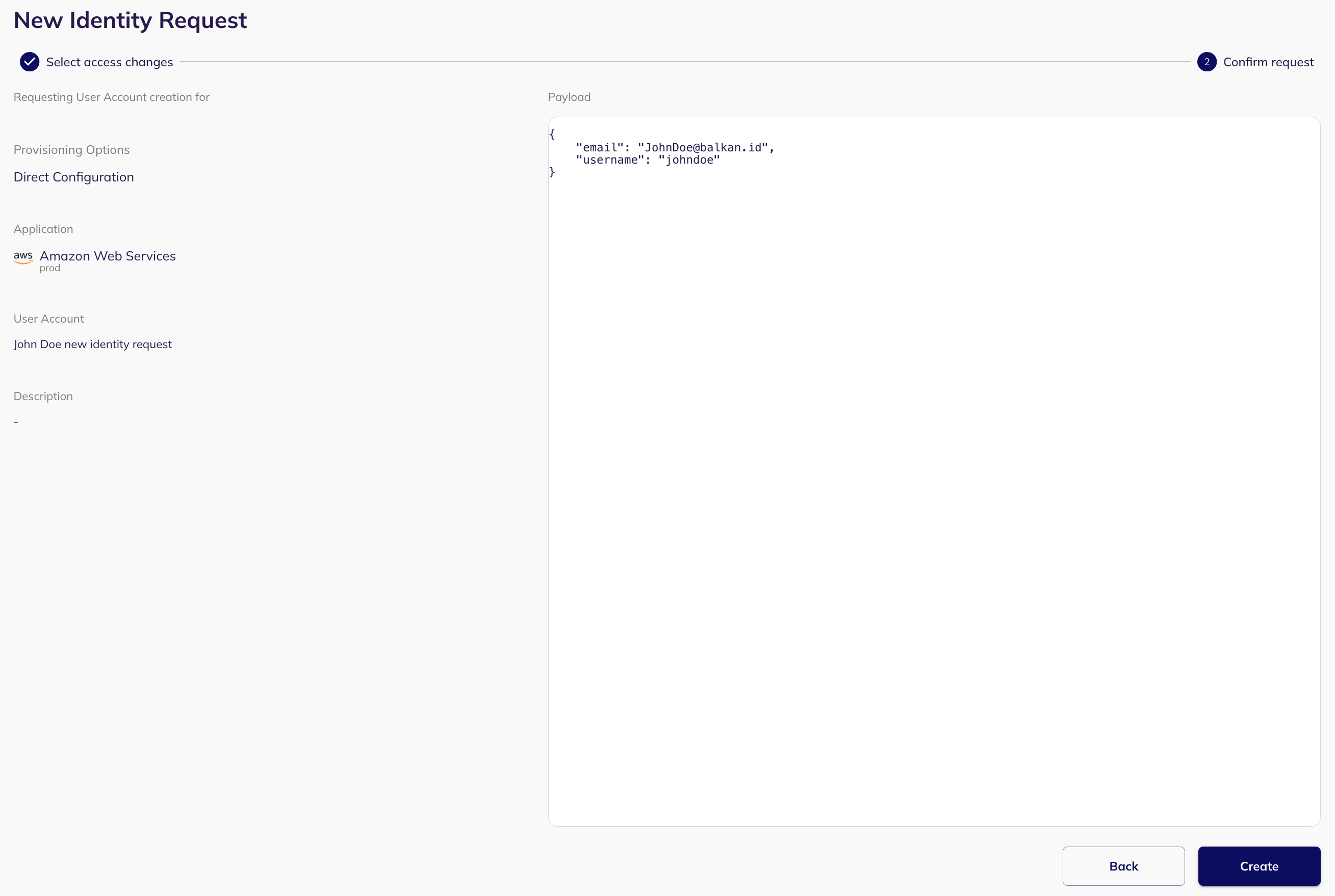
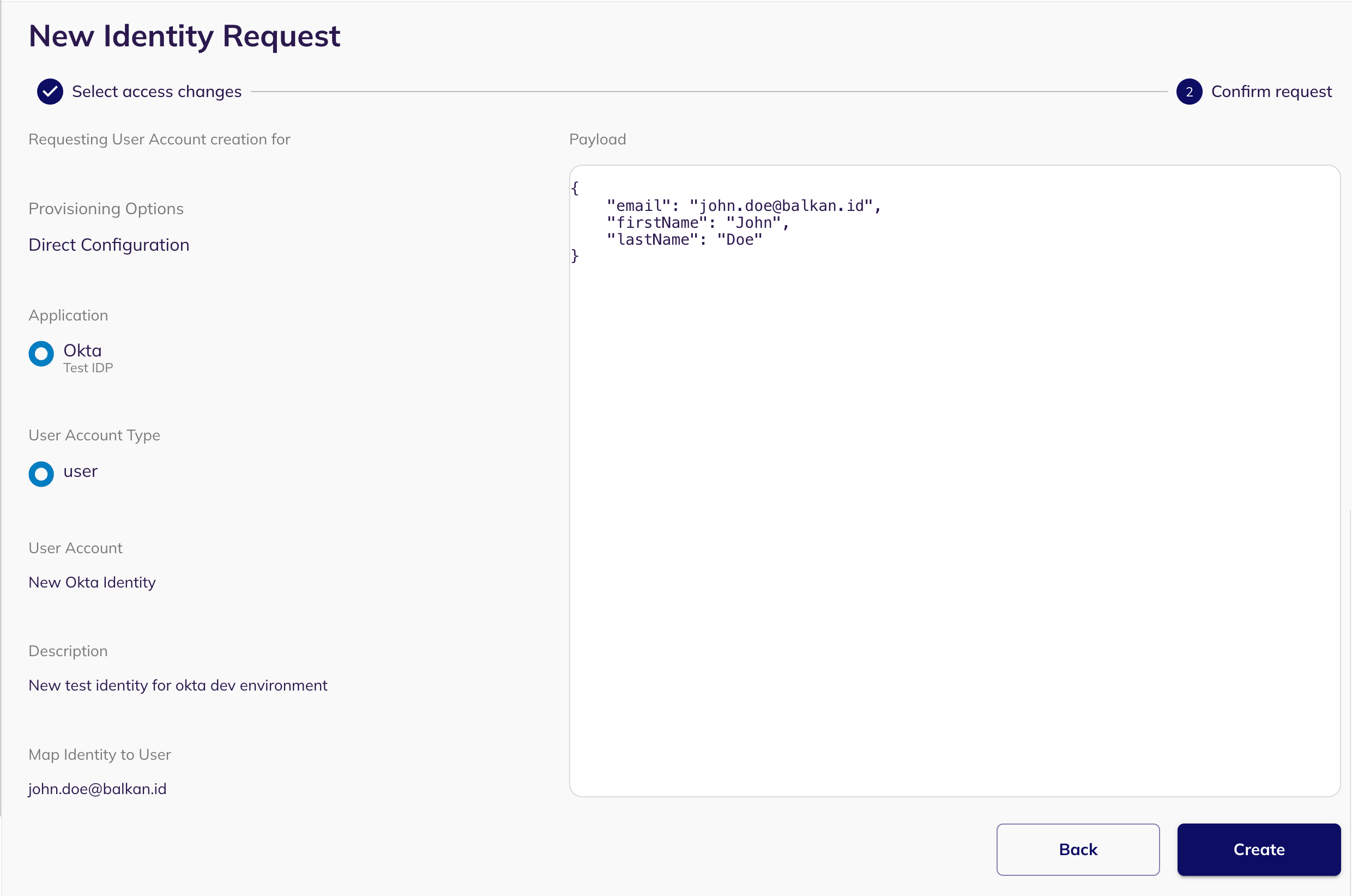
6. **Preview Your Request:** After filling out the form, proceed to the next page to preview your request. This ensures that all provided information is correct.
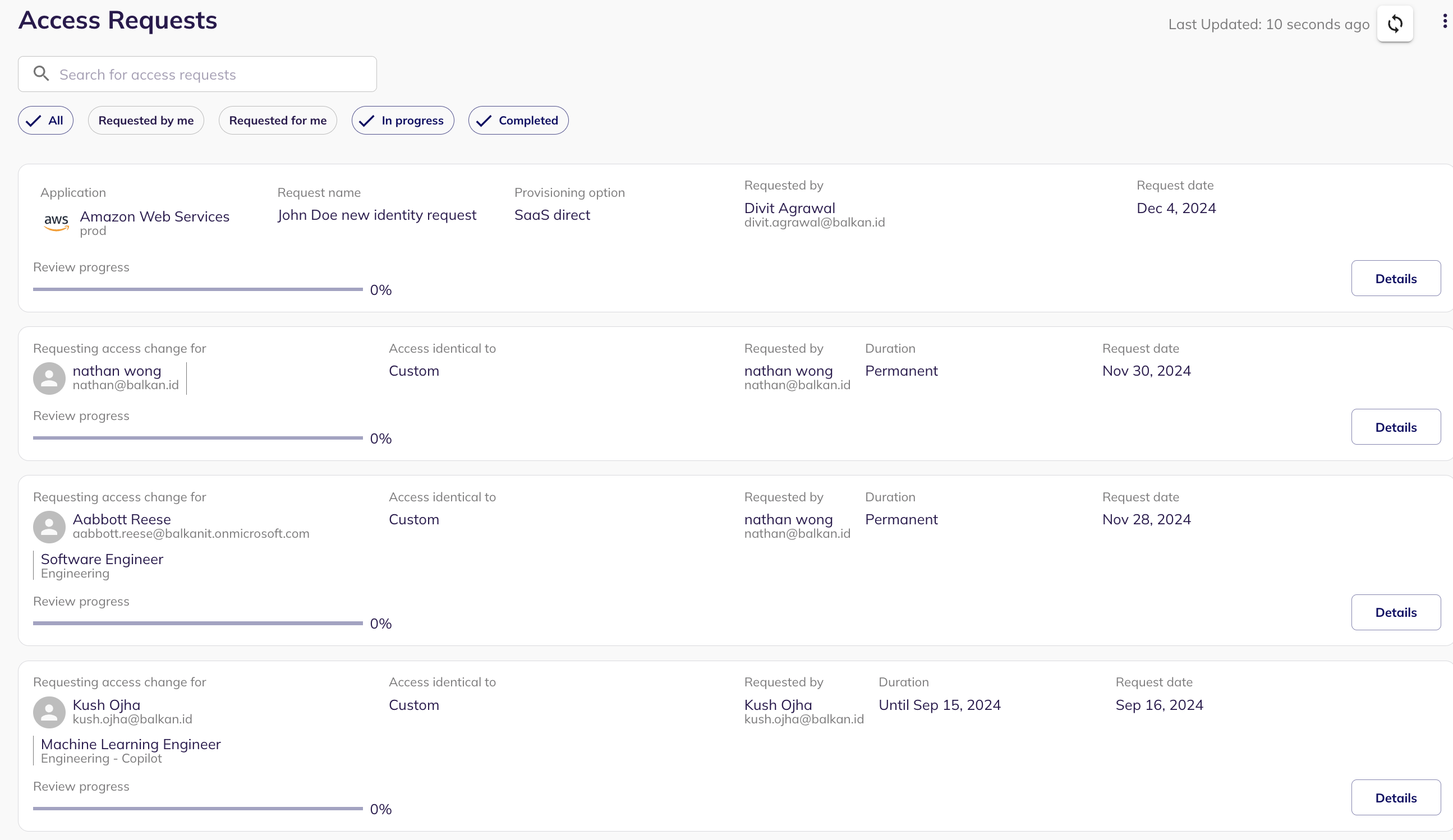
7. **Create Request:** Click the "Create Request" button. Your request will be submitted for approval. The request will be visible in the my task page of the reviewer.
8. **Approval and Verification:** Once approved(from the my task page of the reviewer), the identity will be added to the selected application. You can verify the addition by checking within the respective application.
### **Identity Assignment**
The assignment function allows you to grant or revoke access to various resources and connections for an existing connection.
1. **Select Assignment:** Choose the "Assignment" radio button to begin the process of assigning resources to a connection.
2. **Select provisioning option and application:** Choose the provisioning option and then select the application of the identity you wish to grant/revoke access to.
3. **Select a user account:** Select the user for which you want to grant/revoke access.
4. **Select grant/revoke connections:** From the **visual** view, select the accesses you want to grant/revoke from this user's account.
5. **Preview and Create Request:** Like the creation process, preview your request on the next page and then click on "Create Request" to submit it for approval. The request will be visible in the my task page of the reviewer.
6. **Approval and Update:** Once approved (from the reviewer's my task page) the identity's assignments within the application will be updated according to your specifications.
### **Identity Deletion**
Deleting an identity deletes it from the selected application.
1. **Select Deletion:** Choose the "Deletion" radio button to initiate the identity deletion process.
2. **Choose a Provisioning Option:** Select a provisioning option.
3. **Choose an Application:** Select the application from which you want to delete an identity.
4. **Select User account:** Select the user account (identity) which you want to delete from the selected application.
5. **Configure Data Transfer (If applicable):** For supported applications, you will be presented with a Payload section containing both a Visual and a JSON option to manage the transfer of the deleted user's data to another active account.
* Select the data categories you wish to transfer.
* Provide a valid Target Email for the recipient of the transferred data.
6. **Preview and Create Request:** Preview your deletion request on the next page and click on "Create Request" to submit it for approval**.**The request will be visible in the my task page of the reviewer.
7. **Approval and Deletion:** After the request is approved (from the reviewer's my task page), the identity will be deleted from the application.
### **Identity Suspension**
Suspending an identity suspends it from the selected application. Only non-Suspended Identities can have Suspension requests created for them.
1. **Select Suspension:** Choose the "Suspension" radio button to initiate the identity suspension process.
2. **Choose a Provisioning Option:** Select a provisioning option.
3. **Choose an Application:** Select the application from which you want to suspend an identity.
4. **Select User account:** Select the user account (identity) which you want to suspend in the selected application.
5. **Configure Data Transfer (If applicable):** For supported applications, you will be presented with a Payload section containing both a Visual and a JSON option to manage the transfer of the suspended user's data to another active account.
* Select the data categories you wish to transfer.
* Provide a valid Target Email for the recipient of the transferred data.
6. **Preview and Create Request:** Preview your suspension request on the next page and click on "Create Request" to submit it for approval**.**The request will be visible in the my task page of the reviewer.
7. **Approval and Suspension:** After the request is approved (from the reviewer's my task page), the identity will be suspended in the application.
### **Identity Reactivation**
Reactivating an identity reactivates it from the selected application. Only Suspended Identities can have Reactivation requests created for them.
1. **Select Reactivation:** Choose the "**Reactivation**" radio button to initiate the identity reactivation process.
2. **Choose a Provisioning Option:** Select a provisioning option.
3. **Choose an Application:** Select the application from which you want to reactivate an identity.
4. **Select user account:** Select the user account (identity) which you want to reactivate in the selected application.
5. **Preview and Create Request:** Preview your reactivation request on the next page and click on "Create Request" to submit it for approval**.**The request will be visible in the my task page of the reviewer.
6. **Approval and Reactivation:** After the request is approved (from the reviewer's my task page), the identity will be reactivated in the application.
---
# Agent Instructions
This documentation is published with GitBook. GitBook is the documentation platform designed so that both humans and AI agents can read, navigate, and reason over technical content effectively. Learn more at gitbook.com.
## Querying This Documentation
If you need additional information that is not directly available in this page, you can query the documentation dynamically by asking a question.
Perform an HTTP GET request on the current page URL with the `ask` query parameter, and the optional `goal` query parameter:
```
GET https://docs.balkan.id/lifecycle-management/access-requests/new-identity-access-request.md?ask=&goal=
```
`ask` is the immediate question: it should be specific, self-contained, and written in natural language.
`goal` is optional and describes the broader end goal you are ultimately trying to accomplish on behalf of the user. GitBook uses it to tailor the answer towards what is most useful for that goal.
The response will contain a direct answer to the question and relevant excerpts and sources from the documentation.
Use this mechanism when the answer is not explicitly present in the current page, you need clarification or additional context, or you want to retrieve related documentation sections.