> For the complete documentation index, see [llms.txt](https://docs.balkan.id/llms.txt). Markdown versions of documentation pages are available by appending `.md` to page URLs; this page is available as [Markdown](https://docs.balkan.id/getting-started/setting-up-your-tenant/application-integrations/media-extraction-for-disconnected-apps.md).
# Media Extraction for Disconnected Apps
Upload PDFs and images from non-integrated apps. BalkanID extracts entitlements with AI, supports human review, then ingests data for discovery and access reviews.
{% hint style="info" %}
This feature is currently in **Early Access**. Contact us if you'd like to have this enabled for your tenant(s).
{% endhint %}
Media Extraction lets you create a **integration disconnected apps** which do not provide APIs or other connectors by uploading evidence files.
BalkanID extracts entitlement data from PDFs and images. You review it, fix it if required, and approve it. Then BalkanID ingests it into your access graph.
Once ingested, the app shows up like any other integration on the [Applications page](/getting-started/entitlement-discovery/applications-entitlements-discovery.md). The entitlements can also be used in [access review campaigns](/user-access-reviews/access-review-management/configuring-access-reviews-and-campaigns/creating-campaigns.md).
### When to use Media Extraction
Use it when you can’t connect the app directly.
Common cases:
* Apps without API integrations
* Legacy systems with limited export options
* One-time audits
* Custom/internal interfaces and sheets
If your use-case involves a standard app which provides an API, see if we support it as a [Direct Application Integration](/getting-started/setting-up-your-tenant/application-integrations/direct-application-integrations.md), or contact us to build support.
If you already have clean entitlement exports, prefer a CSV-based custom app. See [Custom Application Integration Data Upload](/getting-started/setting-up-your-tenant/application-integrations/custom-application-integration-data-upload.md).
### How it works
{% stepper %}
{% step %}
### Upload evidence
Upload a PDF or image that shows users and access.
{% endstep %}
{% step %}
### AI extraction
BalkanID analyzes the media and extracts structured rows. The output follows the same entity + relation shape as custom app uploads.
Under the hood, we use Azure Content Understanding to extract text and tables.
{% hint style="info" %}
Confidence scores and extraction warnings are coming soon.
{% endhint %}
{% endstep %}
{% step %}
### Human review
A human reviews the extraction. If required, you can edit the extraction output inline or upload a corrected CSV.
{% endstep %}
{% step %}
### Approve and ingest
Approval triggers an integration sync. The extracted identities and access are ingested into the access graph.
{% endstep %}
{% endstepper %}
### Getting started
#### 1) Create a Media Extraction integration
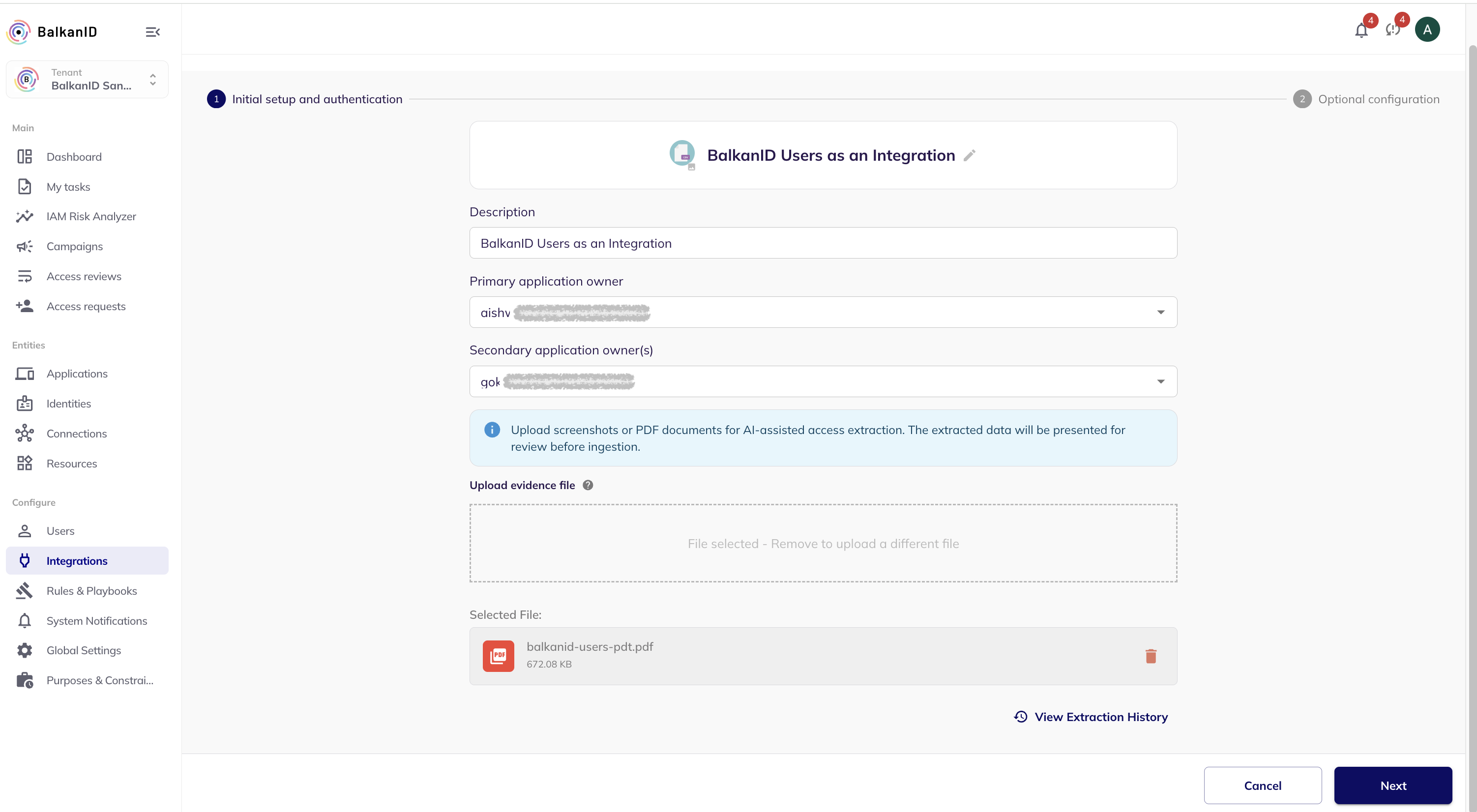
1. Go to **Configure → Integrations**.
2. Click **Add Integration**.
3. Search for **Media Extraction Disconnected Apps**.
4. Set a name and description (optional).
5. Upload evidence files (click and select, or drag and drop).
6. Save.
**Supported file types**
* **Images:** `jpeg`, `png`, `webp`
* **Documents:** `pdf`
{% hint style="info" %}
**Video uploads (`mp4`)** are in private preview. Contact to enable them.
{% endhint %}
**File requirements and limits**
* **Max file size:** 25 MB per file
* **Uploads:** single-file only (for now)
* If you have multiple screenshots, combine them into one PDF.
* If your data spans multiple pages, capture each page and combine them into one PDF before upload.
* Higher resolution improves extraction quality.
**Evidence best practices**
* Capture full tables with headers.
* Keep text readable.
* Avoid overlapping windows.
* Include complete permission listings.
* Make sure all required columns are visible horizontally in each screenshot or PDF page.
#### 2) Monitor extraction progress
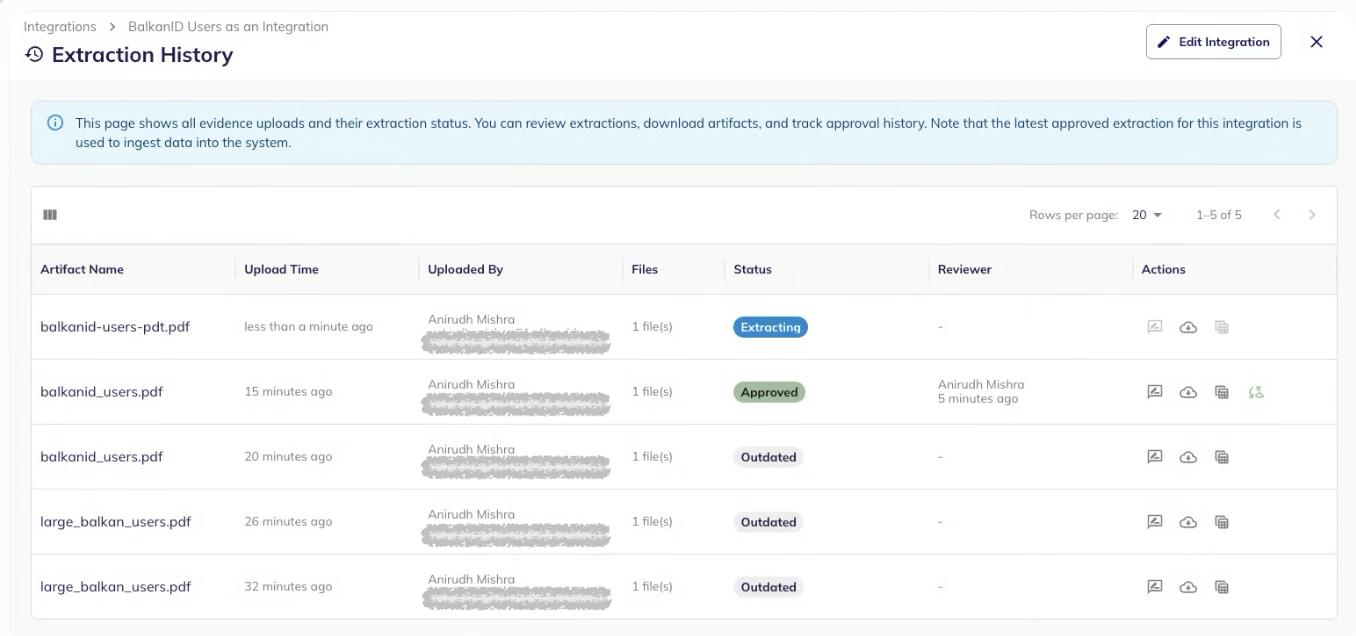
After upload, each extraction moves through statuses. You can see them on the extraction details view and in history.
Statuses:
* **Initializing:** upload complete and queued
* **Extracting:** AI processing in progress
* **Awaiting review:** extraction ready to review
* **Approved:** approved for ingestion
* **Failed:** extraction failed
* **Outdated:** superseded by a newer approved extraction
Timeouts:
* Upload/initialization: 10 minutes
* Extraction: 60 minutes total
#### 3) Review extracted data
Open the **Review** view once the status is **Awaiting review**.
You’ll typically see:
* **Details** about the upload (file name, uploader, timestamp)
* A **status** banner with next steps
* An **extracted data grid** with inline editing
* Export actions (download extracted CSV)
**Extraction warnings (coming soon)**
When available, warnings will highlight likely issues, such as:
* Missing required fields
* Low-confidence values
* Format inconsistencies
* Duplicate entries
#### 4) Fix data (optional)
You can correct data before approval.
**Option A: Inline edits**
* Click a cell to edit.
* Add rows using **Add Row**.
* Delete rows via the row menu.
Best for small fixes.
**Option B: Upload a corrected CSV**
1. Export the extracted CSV.
2. Edit it in Excel or a spreadsheet.
3. Upload it back as a corrected CSV.
Note: Keep column headers unchanged.
#### 5) Approve and ingest
1. Verify required fields are filled.
2. Click **Review and Approve**.
3. Confirm approval.
After approval:
* BalkanID triggers an integration sync.
* Older extractions for this integration become **Outdated**.
* After a successful sync, data becomes visible for discovery on the [Applications page](/getting-started/entitlement-discovery/applications-entitlements-discovery.md).
### Understanding the extracted schema
Each row represents an entity relationship. It matches the entity model described in [Entitlement data discovery](/getting-started/entitlement-data-discovery.md). Minimum required datapoints for ingestion are the same as custom app entitlement uploads.
{% hint style="info" %}
If you include an email for user identities in your evidence media, BalkanID can often auto-map identities to employees. Otherwise, you can perform mapping later: see [Mapping Identities to Employees](/getting-started/setting-up-your-tenant/application-integrations/mapping-and-unmapping-identities-to-employees.md).
{% endhint %}
### Managing extractions
#### Extraction history
Go to **Integration → Extraction History**.
You can:
* Open extraction details
* Download the original evidence file
* Download the extracted CSV
* Download the corrected CSV (if any)
* Retry failed extractions
* Re-upload an approved CSV to force a re-sync
#### Retrying failed extractions
1. Open **Extraction History**.
2. Select a **Failed** extraction.
3. Click **Retry**.
Common reasons:
* Unsupported or corrupted file
* Upstream timeouts
* Low-quality scans with unreadable text
#### Re-syncing approved data
Use **Re-upload** on an approved extraction. This forces the sync pipeline to re-ingest that extraction. Useful in case of failed integration syncs post-approval.
### Retention and auditability
Downloads and re-upload actions are disabled after **30 days** due to retention policies.
Extraction history remains visible. Approval actions are recorded with reviewer and timestamp.
### FAQ
#### How accurate is extraction?
Accuracy depends on evidence quality. Always review and correct as needed before approval. Ensure that every screenshot/document page includes all required data points. Remember: this is an AI-enabled feature, and can make mistakes.
#### I'm not getting accurate extraction for my screenshots/documents.
If the default setup is not working well for the UI present in your uploaded media, feel free to contact support and we'll customise it for you.
#### What happens when I upload new evidence?
A new extraction starts, and waits for your review on completion. The newest approved extraction becomes active. Previous approved extractions are marked **Outdated**.
#### What if my data is spread across multiple pages of a table?
Media Extraction currently supports single-file uploads only.
If your table spans multiple pages, take a screenshot of each page and combine the images into a single PDF before uploading. Most operating systems include built-in tools for both screenshot capture and combining images into a PDF, so you usually do not need extra software.
#### Can I delete an extraction?
Extractions can’t be deleted individually. You can replace the active dataset by uploading and approving a new extraction. Deleting the integration removes its associated data.
{% embed url="" %}
---
# Agent Instructions
This documentation is published with GitBook. GitBook is the documentation platform designed so that both humans and AI agents can read, navigate, and reason over technical content effectively. Learn more at gitbook.com.
## Querying This Documentation
If you need additional information that is not directly available in this page, you can query the documentation dynamically by asking a question.
Perform an HTTP GET request on the current page URL with the `ask` query parameter, and the optional `goal` query parameter:
```
GET https://docs.balkan.id/getting-started/setting-up-your-tenant/application-integrations/media-extraction-for-disconnected-apps.md?ask=&goal=
```
`ask` is the immediate question: it should be specific, self-contained, and written in natural language.
`goal` is optional and describes the broader end goal you are ultimately trying to accomplish on behalf of the user. GitBook uses it to tailor the answer towards what is most useful for that goal.
The response will contain a direct answer to the question and relevant excerpts and sources from the documentation.
Use this mechanism when the answer is not explicitly present in the current page, you need clarification or additional context, or you want to retrieve related documentation sections.