> For the complete documentation index, see [llms.txt](https://docs.balkan.id/llms.txt). Markdown versions of documentation pages are available by appending `.md` to page URLs; this page is available as [Markdown](https://docs.balkan.id/getting-started/setting-up-your-tenant/application-integrations/direct-application-integrations/tenable-integration-setup.md).
# Tenable Integration Setup
### Getting Started
Use this guide to connect Tenable to your BalkanID tenant. You will need an API key pair from Tenable and access to the Integrations section in BalkanID.
Once connected, BalkanID syncs your Tenable users, groups and roles, along with each user's group memberships and role assignments.
{% hint style="info" %}
This integration supports **Tenable Vulnerability Management** at cloud.tenable.com. Tenable Security Center, the self-hosted product, uses a different API and is not supported.
{% endhint %}
#### Requirements:
Before you begin, collect the following values from Tenable:
* **Access key**
* **Secret key**
### Configure Tenable within your BalkanID tenant
1. To find the **Access key** and **Secret key**, sign in to Tenable at cloud.tenable.com as a user with the Administrator role. Tenable recommends creating a dedicated user for each integration, because each account holds only one API key pair at a time and generating a new pair immediately invalidates the previous one.
2. In the upper-right corner, click the user profile icon. The **My Account** page appears.
3. In the left navigation, click **API Keys**. In the bottom-left corner, click **Generate**, then click **Continue**.
4. Under **ACCESS KEY** and **SECRET KEY**, your new keys appear. Copy both to a safe location — after you close the **My Account** page you cannot view them again.
5. In BalkanID, go to **Integrations** and click **Add integration**.
Integrations
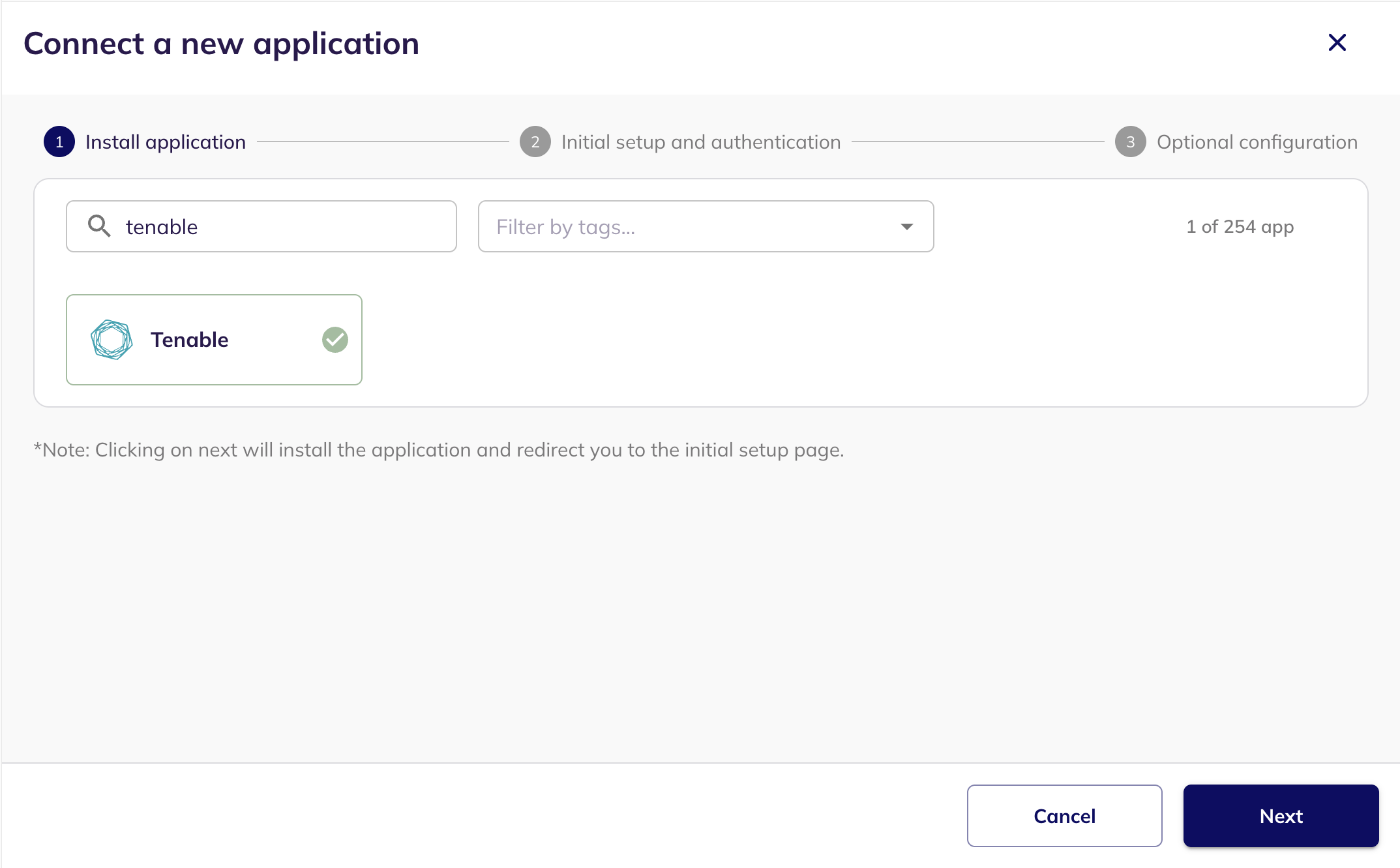
6. Search for Tenable, select it, and click **Next**.
Connect a new application
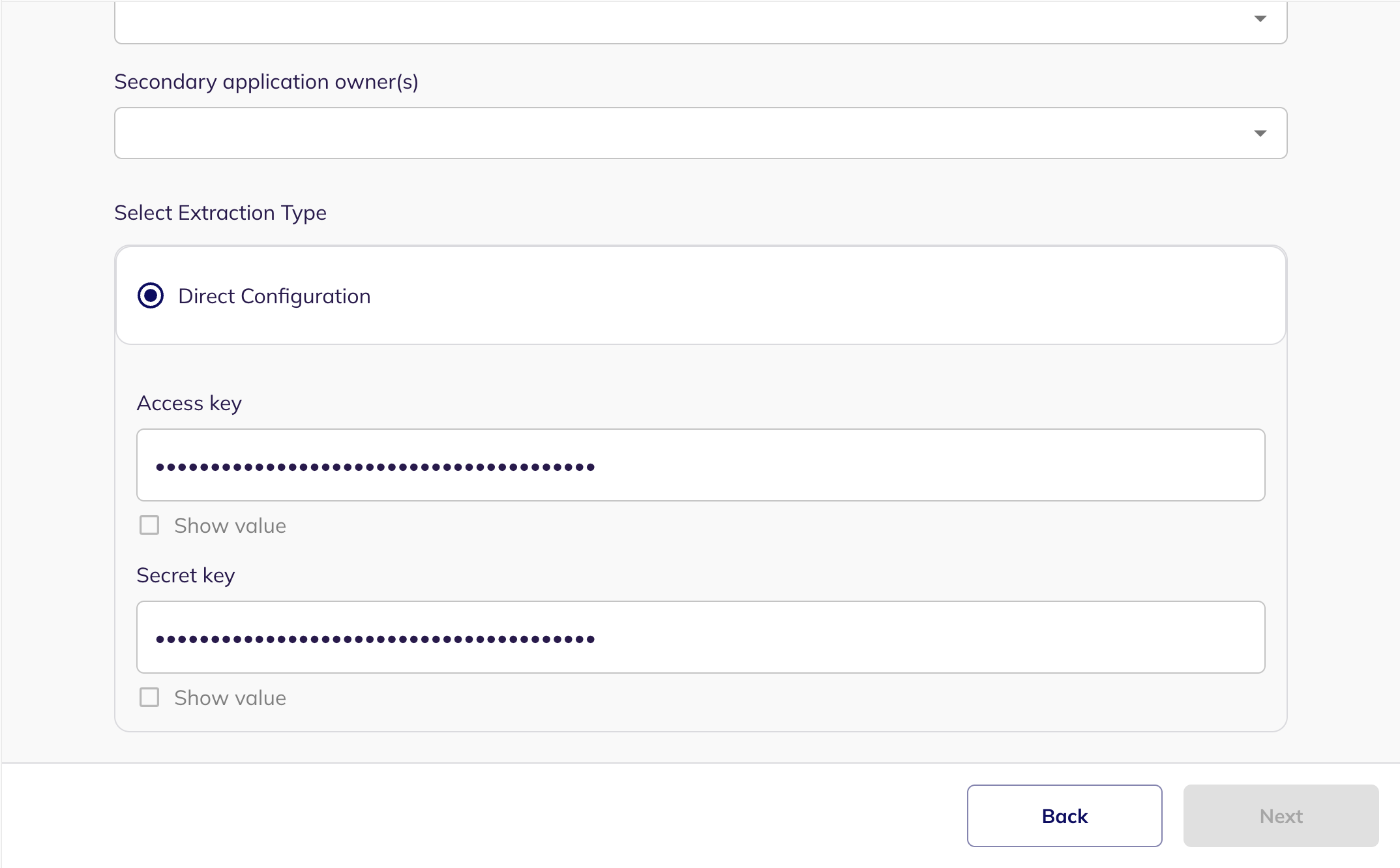
7. Set the **Primary application owner**, and a **Description** and **Secondary application owner(s)** if you need them. Under **Select Extraction Type**, choose **Direct Configuration**, paste your **Access key** and **Secret key**, then click **Next.**
Direct Configuration
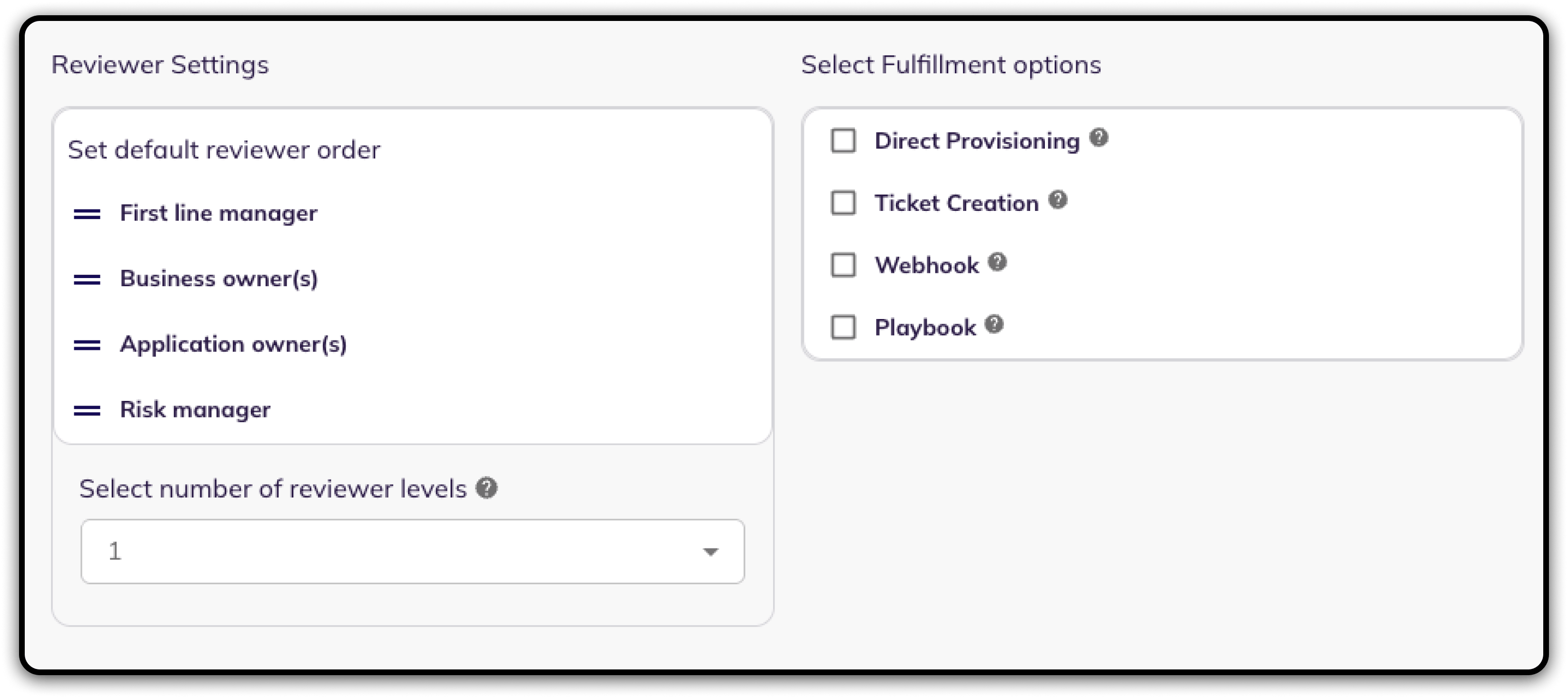
8. Fill **Optional Configuration**, if required.
Optional Configuration
9. Once you have filled in the information, click **Save**. Your integration is now configured and you will see the status of the integration displayed alongside other integrations on the Integrations page. When data is available, the integration Status column will read **Connected** and the integration Message will read **Data available**.
### Integration Scopes
Tenable API keys inherit the role of the user that generated them, so the role below is what governs access.
| Read Only Scopes | Lifecycle Management Scopes |
| ----------------------------------------------------------------------------------------------------------------------------------------------------------- | --------------------------- |
| **Administrator \[64]** — reads users along with their group memberships and assigned roles, the list of user groups, and the access control role catalogue | N/A |
{% hint style="info" %}
A key generated by a user below the Administrator role does not fail — Tenable simply returns fewer details for each user, which leaves the synced data incomplete. If your tenant restricts API access by IP address, allow-list the BalkanID egress addresses as well.
{% endhint %}
---
# Agent Instructions
This documentation is published with GitBook. GitBook is the documentation platform designed so that both humans and AI agents can read, navigate, and reason over technical content effectively. Learn more at gitbook.com.
## Querying This Documentation
If you need additional information that is not directly available in this page, you can query the documentation dynamically by asking a question.
Perform an HTTP GET request on the current page URL with the `ask` query parameter, and the optional `goal` query parameter:
```
GET https://docs.balkan.id/getting-started/setting-up-your-tenant/application-integrations/direct-application-integrations/tenable-integration-setup.md?ask=&goal=
```
`ask` is the immediate question: it should be specific, self-contained, and written in natural language.
`goal` is optional and describes the broader end goal you are ultimately trying to accomplish on behalf of the user. GitBook uses it to tailor the answer towards what is most useful for that goal.
The response will contain a direct answer to the question and relevant excerpts and sources from the documentation.
Use this mechanism when the answer is not explicitly present in the current page, you need clarification or additional context, or you want to retrieve related documentation sections.