> For the complete documentation index, see [llms.txt](https://docs.balkan.id/llms.txt). Markdown versions of documentation pages are available by appending `.md` to page URLs; this page is available as [Markdown](https://docs.balkan.id/getting-started/setting-up-your-tenant/application-integrations/direct-application-integrations/google-analytics-integration-setup.md).
# Google Analytics Integration Setup
### Getting Started
Use this guide to connect Google Analytics to your BalkanID tenant. You will need access to the Google Cloud console, administrator access in Google Analytics, and access to the Integrations section in BalkanID.
BalkanID connects to Google Analytics with a Google Cloud service account. You do not need to complete an OAuth consent flow, and you do not need to configure domain-wide delegation.
#### Requirements:
Before you begin, collect the following values:
* **Service Account JSON Key**
* **Service Account Email**
* **Google Analytics Account ID**
### Configure Google Analytics within your BalkanID tenant
1. Sign in to the [Google Cloud console](https://console.cloud.google.com/) and select an existing project or create a new one.
2. Go to **APIs & Services** > **Library**, search for the **Google Analytics Admin API**, and click **Enable**.
3. Go to **IAM & Admin** > **Service Accounts** and click **Create service account**. Give it a name and click **Done**.
4. Open the service account, go to the **Keys** tab, click **Add key** > **Create new key**, choose **JSON**, and click **Create**. Your browser downloads the key file. The contents of this file are your **Service Account JSON Key**.
5. Copy the service account's email address from the **Details** tab. This is your **Service Account Email**.
6. Sign in to [Google Analytics](https://analytics.google.com/) and go to **Admin** > **Account access management**.
7. Click **+**, then **Add users**. Enter the service account email address, assign the **Administrator** role, and click **Add**.
8. Note your **Google Analytics Account ID**. You can find it under **Admin** > **Account settings**. This value is optional: leave it empty in BalkanID to sync every account the service account can see.
9. In BalkanID, go to **Integrations** and click **Add integration**.
Integrations
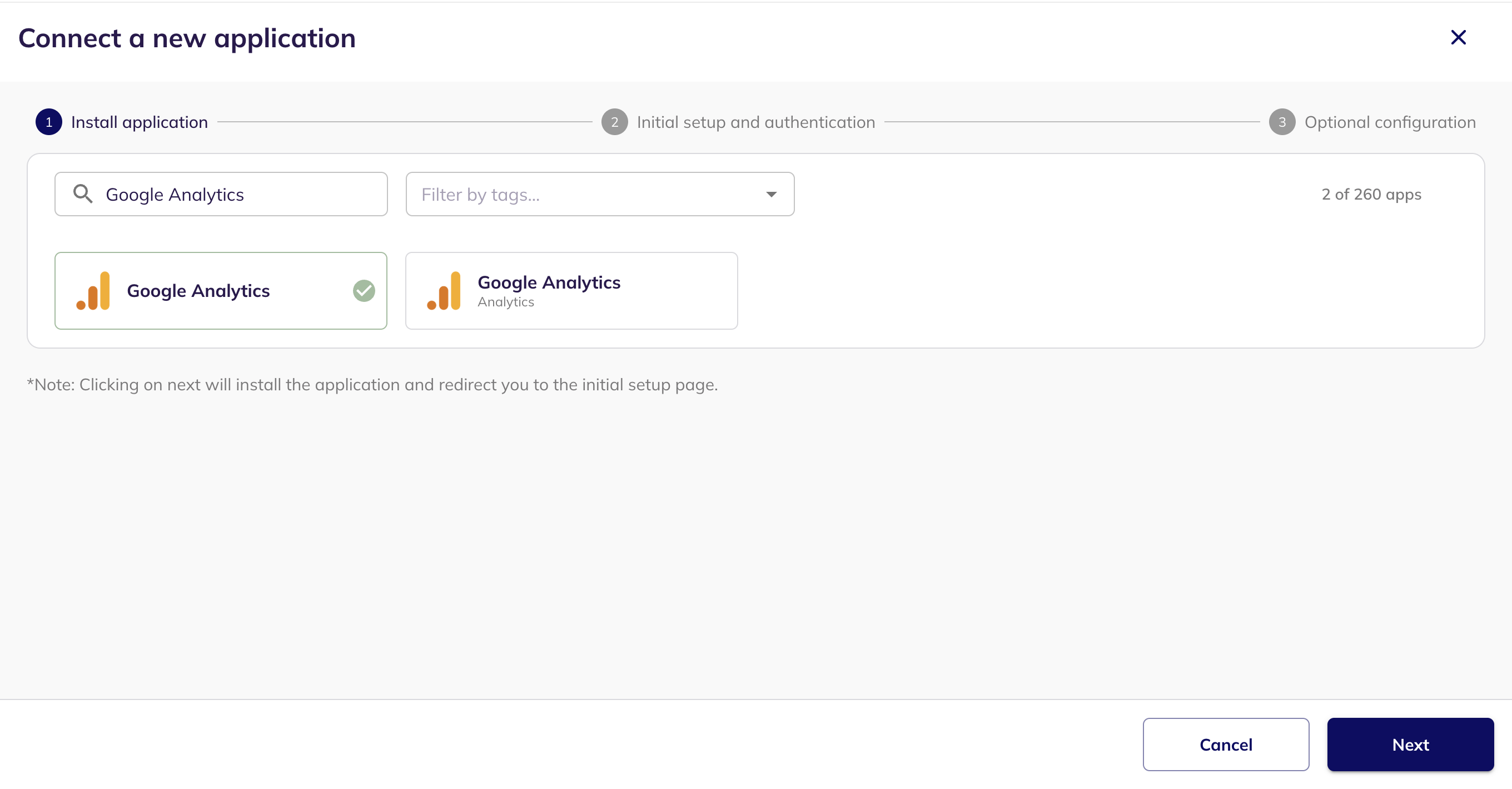
10. Search for **Google Analytics**, select it, and click **Next**.
Connect a new application
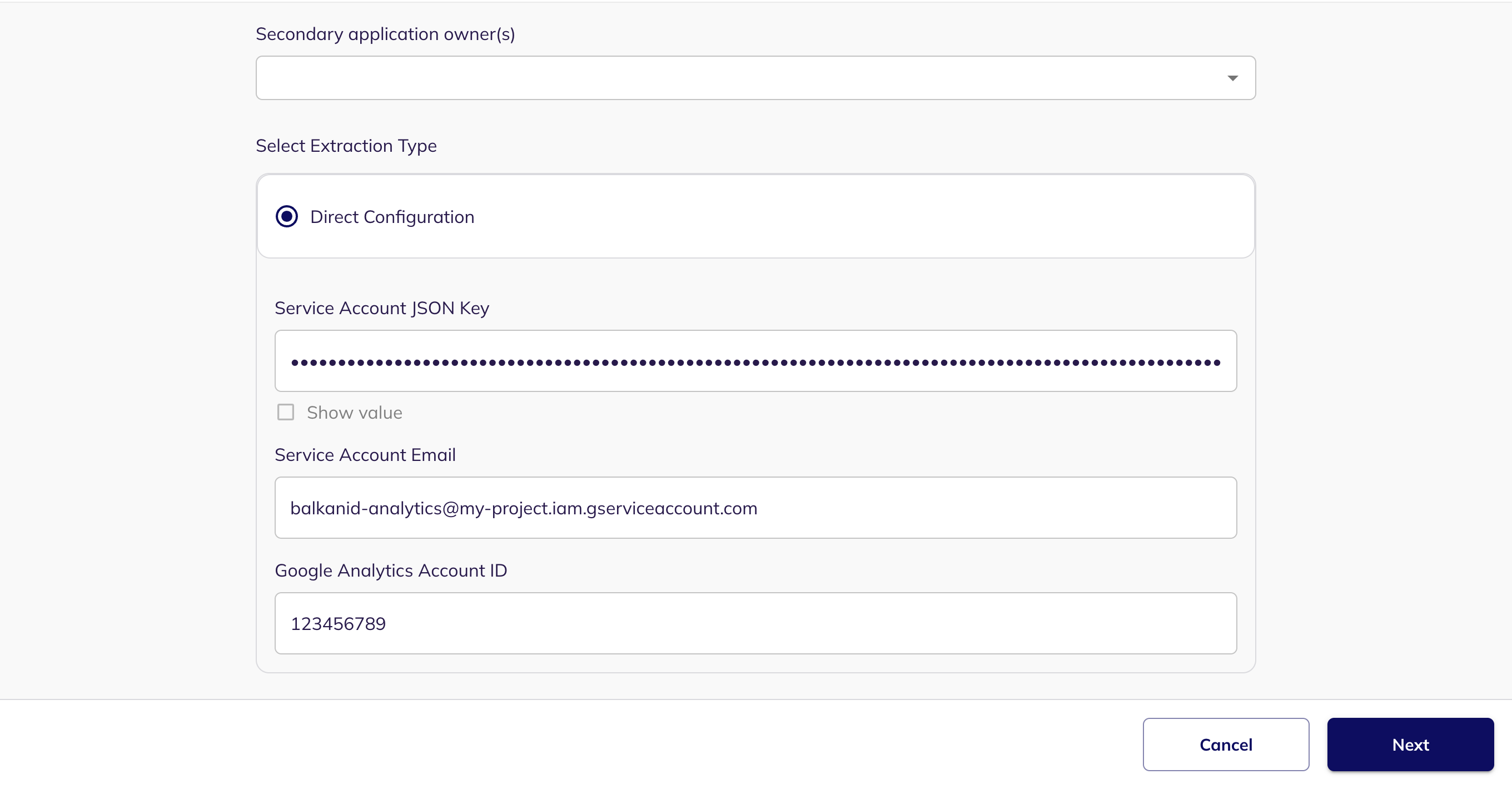
11. Under **Select Extraction Type**, choose **Direct Configuration**. Paste the contents of your key file into **Service Account JSON Key**, enter the **Service Account Email**, and optionally enter the **Google Analytics Account ID**.
Direct Configuration
12. Click Next to move onto Optional Configuration.
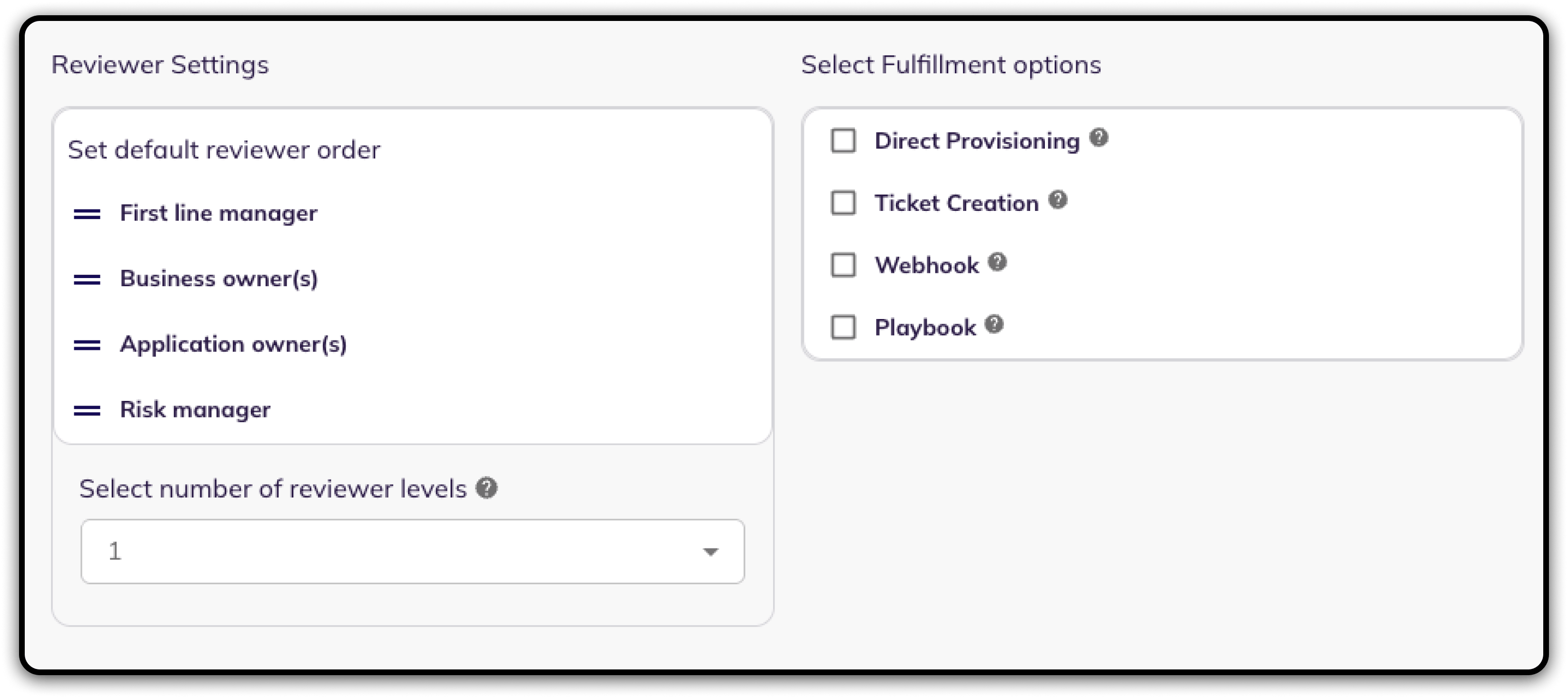
13. Fill **Optional Configuration**, if required.
Optional Configuration
14. Once you have filled in the information, click **Save**. Your integration is now configured and you will see the status of the integration displayed alongside other integrations on the Integrations page. When data is available, the integration Status column will read **Connected** and the integration Message will read **Data available**.
{% hint style="info" %}
Assign the **Administrator** role at the account level. Google Analytics grants roles at either the account or the property level, and account-level access is inherited by every property in that account. A role granted only at the property level does not let BalkanID read the account's user list.
{% endhint %}
### What BalkanID extracts
BalkanID syncs the users in your Google Analytics accounts and the access each one holds:
* **Users** — every user with an access binding, identified by email address.
* **Accounts** and **Properties** — the containers that access is granted on.
* **Roles** — the predefined roles Google Analytics assigns, such as Administrator, Editor, Analyst and Viewer.
Because account-level roles are inherited by every property in the account, BalkanID also records the property access a user receives that way, so an access review shows the full picture rather than only directly granted access.
Data restrictions (**No Cost Metrics** and **No Revenue Metrics**) are recorded alongside the role they modify.
### Integration Scopes
| Read Only Scopes | Lifecycle Management Scopes |
| ------------------------------------------------------------------------------------------------------------------------------ | --------------------------- |
| **Google Analytics (Read)** — reads the accounts and properties the service account can see. | N/A |
| **Google Analytics User Permissions (Read)** — reads the users assigned to each account and property, and the roles they hold. | N/A |
---
# Agent Instructions
This documentation is published with GitBook. GitBook is the documentation platform designed so that both humans and AI agents can read, navigate, and reason over technical content effectively. Learn more at gitbook.com.
## Querying This Documentation
If you need additional information that is not directly available in this page, you can query the documentation dynamically by asking a question.
Perform an HTTP GET request on the current page URL with the `ask` query parameter, and the optional `goal` query parameter:
```
GET https://docs.balkan.id/getting-started/setting-up-your-tenant/application-integrations/direct-application-integrations/google-analytics-integration-setup.md?ask=&goal=
```
`ask` is the immediate question: it should be specific, self-contained, and written in natural language.
`goal` is optional and describes the broader end goal you are ultimately trying to accomplish on behalf of the user. GitBook uses it to tailor the answer towards what is most useful for that goal.
The response will contain a direct answer to the question and relevant excerpts and sources from the documentation.
Use this mechanism when the answer is not explicitly present in the current page, you need clarification or additional context, or you want to retrieve related documentation sections.