> For the complete documentation index, see [llms.txt](https://docs.balkan.id/llms.txt). Markdown versions of documentation pages are available by appending `.md` to page URLs; this page is available as [Markdown](https://docs.balkan.id/getting-started/setting-up-your-tenant/application-integrations/direct-application-integrations/docusign-integration-setup.md).
# Docusign Integration Setup
### Getting Started
Use this guide to connect Docusign to your BalkanID tenant. You will need administrator access to your Docusign account and access to the Integrations section in BalkanID.
BalkanID authenticates to Docusign using JWT Grant, acting on behalf of a single Docusign user that you nominate. BalkanID recommends nominating a dedicated service account for this integration rather than a personal or employee-named account, so that the connection survives staff changes.
Once connected, BalkanID syncs your Docusign users, permission profiles, groups, folders and templates, along with the access between them.
#### Requirements:
Before you begin, collect the following values from Docusign:
* **Integration Key**
* **Impersonated User ID**
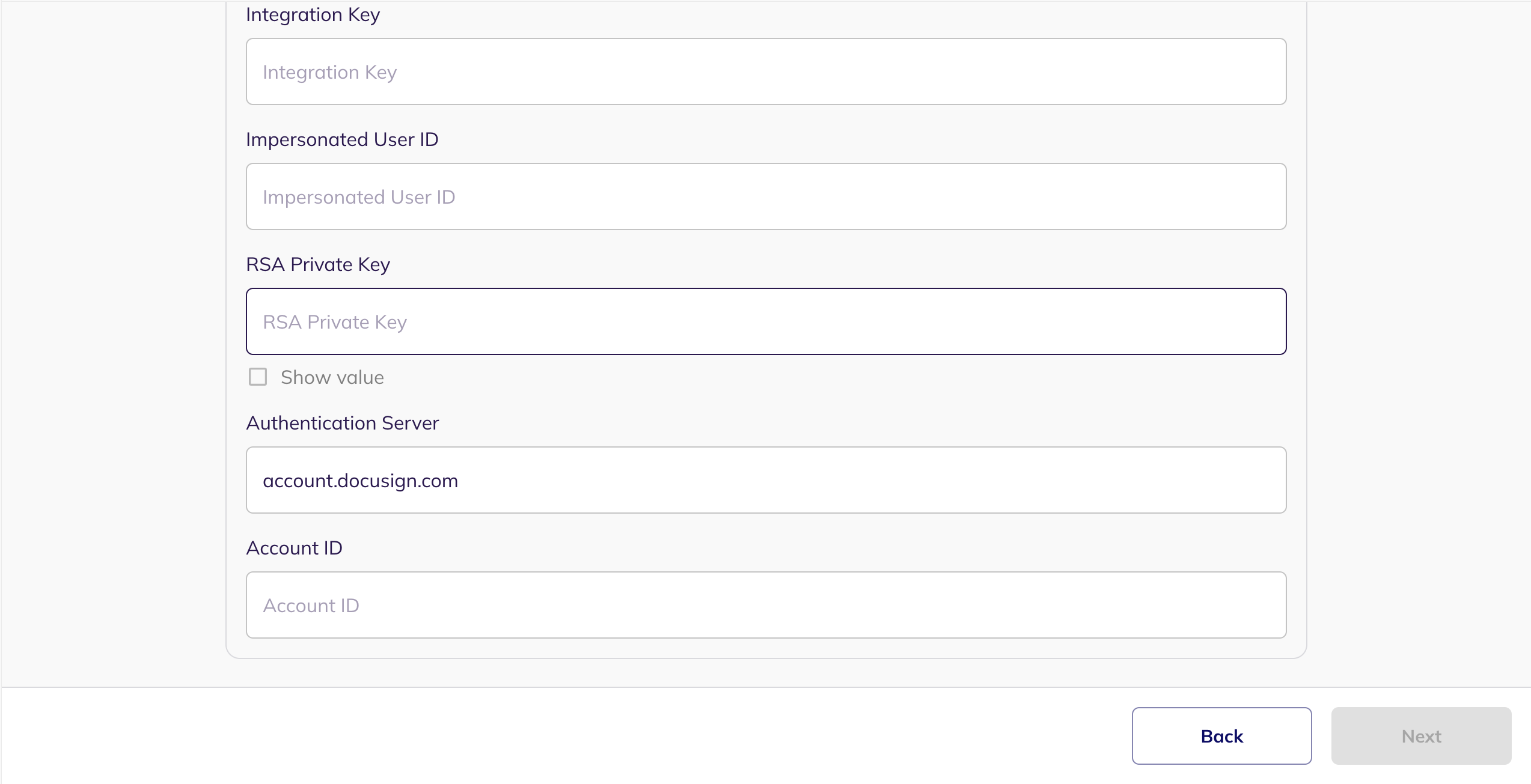
* **RSA Private Key**
* **Authentication Server**
* **Account ID** — only needed if the nominated user belongs to more than one Docusign account
### Configure Docusign within your BalkanID tenant
1. Sign in to Docusign as an administrator and go to **Settings** > **Apps and Keys**.
2. Under **My Apps / Integration Keys**, select **Add App / Integration Key** and give it a name. Copy the **Integration Key** that Docusign generates for the app.
3. Select the app, then choose **Actions** > **Edit**. In the **Additional Settings** section, select **Add URI** and enter a redirect URI. Docusign will not grant consent unless a redirect URI is registered. A localhost address is fine, because BalkanID never receives the redirect.
4. On the same page, generate an RSA key pair for the app and copy the private key. This is your **RSA Private Key**. Docusign displays it only once, so store it before you leave the page.
5. On the **Apps and Keys** page, copy the **User ID** of the account you want BalkanID to act as. This is your **Impersonated User ID**. To nominate a different user, go to **Settings** > **Users**, open that user, and copy their user ID instead.
6. Grant consent for the app to act as that user. Open the following URL in a browser, replacing `YOUR_INTEGRATION_KEY` and `YOUR_REDIRECT_URI` with your own values, sign in as the nominated user, then select **Accept**.
```
https://account.docusign.com/oauth/auth?response_type=code&scope=signature%20impersonation%20user_read%20group_read%20permission_read%20account_read&client_id=YOUR_INTEGRATION_KEY&redirect_uri=YOUR_REDIRECT_URI
```
{% hint style="info" %}
After you select **Accept**, your browser will show a page that cannot be loaded. That is expected — BalkanID does not use the redirect, so you can close the tab. Docusign stores the consent until it is revoked, so this is a one-time step.
{% endhint %}
7. In BalkanID, head to **Integrations** > **Add integration**.
Integrations page
8. Search for **Docusign**, select it, and click **Next**.
9. Set up the **Primary application owner** (mandatory) and the **Description**, if any. Set up **Secondary application owner(s)**, if any.
10. Under **Select Extraction Type**, choose **Direct Configuration** and enter the values you collected. Leave **Authentication Server** set to `account.docusign.com` unless your account is in the Docusign developer environment, in which case use `account-d.docusign.com`. Leave **Account ID** empty unless the nominated user belongs to more than one Docusign account.
Direct Configuration
11. Click Next to move onto Optional Configuration.
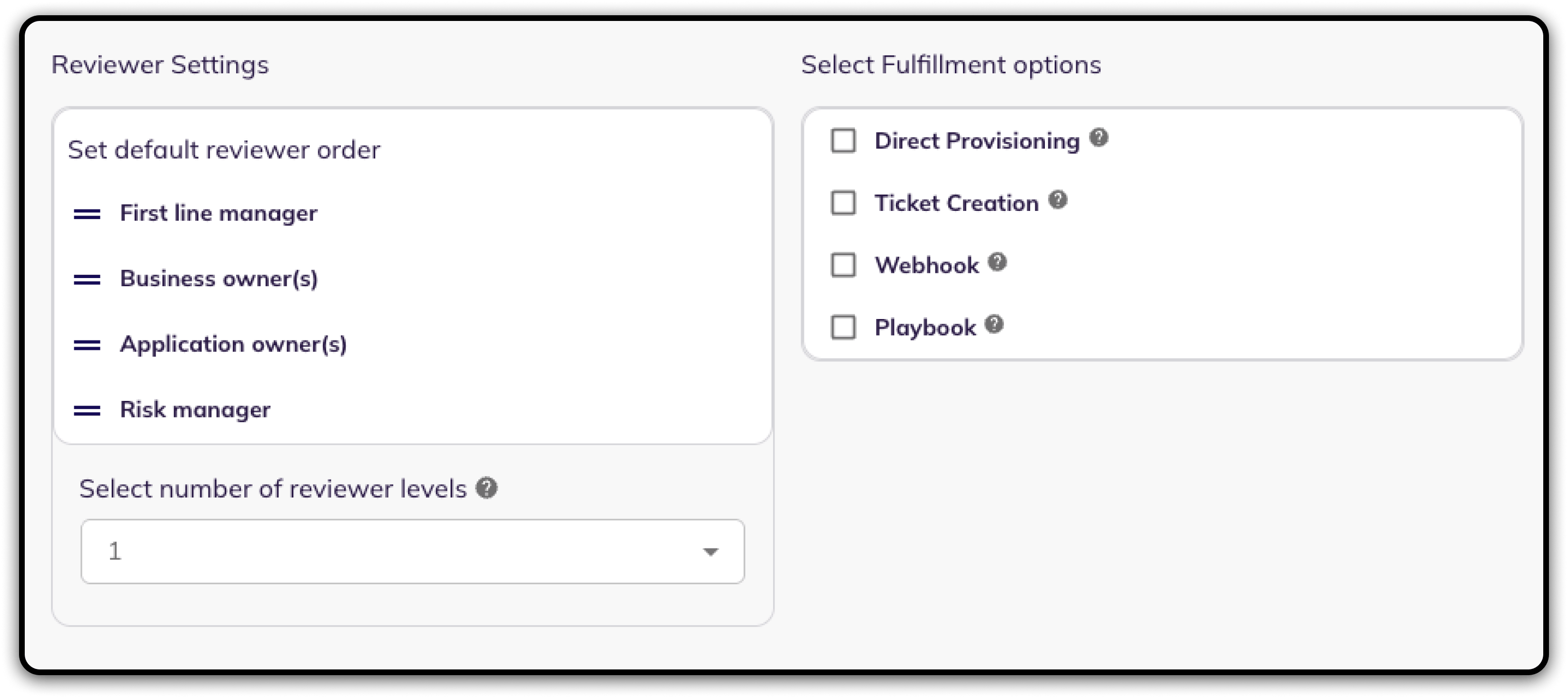
12. Fill **Optional Configuration**, if required.
Optional Configuration
13. Once you have filled in the information, click **Save**. Your integration is now configured and you will see the status of the integration displayed alongside other integrations on the Integrations page. When data is available, the integration Status column will read **Connected** and the integration Message will read **Data available**.
### Integration Scopes
| Read Only Scopes | Lifecycle Management Scopes |
| -------------------------------------------------------------------------------------------------------------------------------------------------------------------------- | --------------------------- |
| **`user_read`** — read access to users | N/A |
| **`group_read`** — read access to groups | N/A |
| **`permission_read`** — read access to permission profiles | N/A |
| **`account_read`** — read access to account information | N/A |
| **`signature`** and **`impersonation`** — required by Docusign to issue an access token on behalf of the nominated user. BalkanID does not create, send or sign envelopes. | N/A |
---
# Agent Instructions
This documentation is published with GitBook. GitBook is the documentation platform designed so that both humans and AI agents can read, navigate, and reason over technical content effectively. Learn more at gitbook.com.
## Querying This Documentation
If you need additional information that is not directly available in this page, you can query the documentation dynamically by asking a question.
Perform an HTTP GET request on the current page URL with the `ask` query parameter, and the optional `goal` query parameter:
```
GET https://docs.balkan.id/getting-started/setting-up-your-tenant/application-integrations/direct-application-integrations/docusign-integration-setup.md?ask=&goal=
```
`ask` is the immediate question: it should be specific, self-contained, and written in natural language.
`goal` is optional and describes the broader end goal you are ultimately trying to accomplish on behalf of the user. GitBook uses it to tailor the answer towards what is most useful for that goal.
The response will contain a direct answer to the question and relevant excerpts and sources from the documentation.
Use this mechanism when the answer is not explicitly present in the current page, you need clarification or additional context, or you want to retrieve related documentation sections.