> For the complete documentation index, see [llms.txt](https://docs.balkan.id/llms.txt). Markdown versions of documentation pages are available by appending `.md` to page URLs; this page is available as [Markdown](https://docs.balkan.id/getting-started/setting-up-your-tenant/application-integrations/direct-application-integrations/atlassian-confluence-integration-setup.md).
# Atlassian Confluence Integration Setup
### Getting Started
BalkanID recommends creating a separate service account for the purposes of this integration, instead of using personal or employee named accounts.
#### Requirements:
* ***API Key***
* ***Domain Name***- organization’s domain name(for example: [https://organization.atlassian.net](https://organization.atlassian.net/))
* ***Email*** - Email ID of admin who has access to all organizational resources.
{% hint style="info" %}
If you connect with an Atlassian service account, the **Domain Name** and **API Key** values are different. See **Connect with an Atlassian service account** below.
{% endhint %}
#### To obtain API-Key:
1. Login into the admin account for Confluence. Click your profile image and select **Profile** from the menu.
2. Navigate to **Security** and click on **Create and Manage API** token.
3. Click on **Create API token.** Provide a label for the token (like “*balkan setup*” or something similar) and create token.
4. Save the token in a secure location.
### Connect with an Atlassian service account
[Atlassian service accounts](https://support.atlassian.com/user-management/docs/manage-api-tokens-for-service-accounts/) use scoped API tokens. These tokens work only through Atlassian's API gateway, not through your site address, so the **Domain Name** and **API Key** you enter in BalkanID differ from a regular account.
1. In **Atlassian Administration**, go to **Directory** > **Service accounts**, select the service account, and [create an API token](https://support.atlassian.com/user-management/docs/manage-api-tokens-for-service-accounts/) for it.
2. When you select the token's [scopes](https://developer.atlassian.com/cloud/confluence/scopes-for-oauth-2-3LO-and-forge-apps/), include all of the following:
* `read:confluence-user`
* `read:confluence-groups`
* `read:confluence-space.summary`
* `read:space:confluence`
3. Copy the token and store it securely. This is the **API Key** you will enter in BalkanID.
4. Find your site's cloud ID. In a browser, open `https://.atlassian.net/_edge/tenant_info` and copy the `cloudId` value.
5. In BalkanID, enter `https://api.atlassian.com/ex/confluence/` in the **Domain Name** field, replacing `` with the value you copied.
6. Enter the service account's email address in the **Email** field.
### Configuring Atlassian Confluence in your BalkanID tenant
1. Login to the BalkanID application and switch to the tenant you would like to add your integration to.
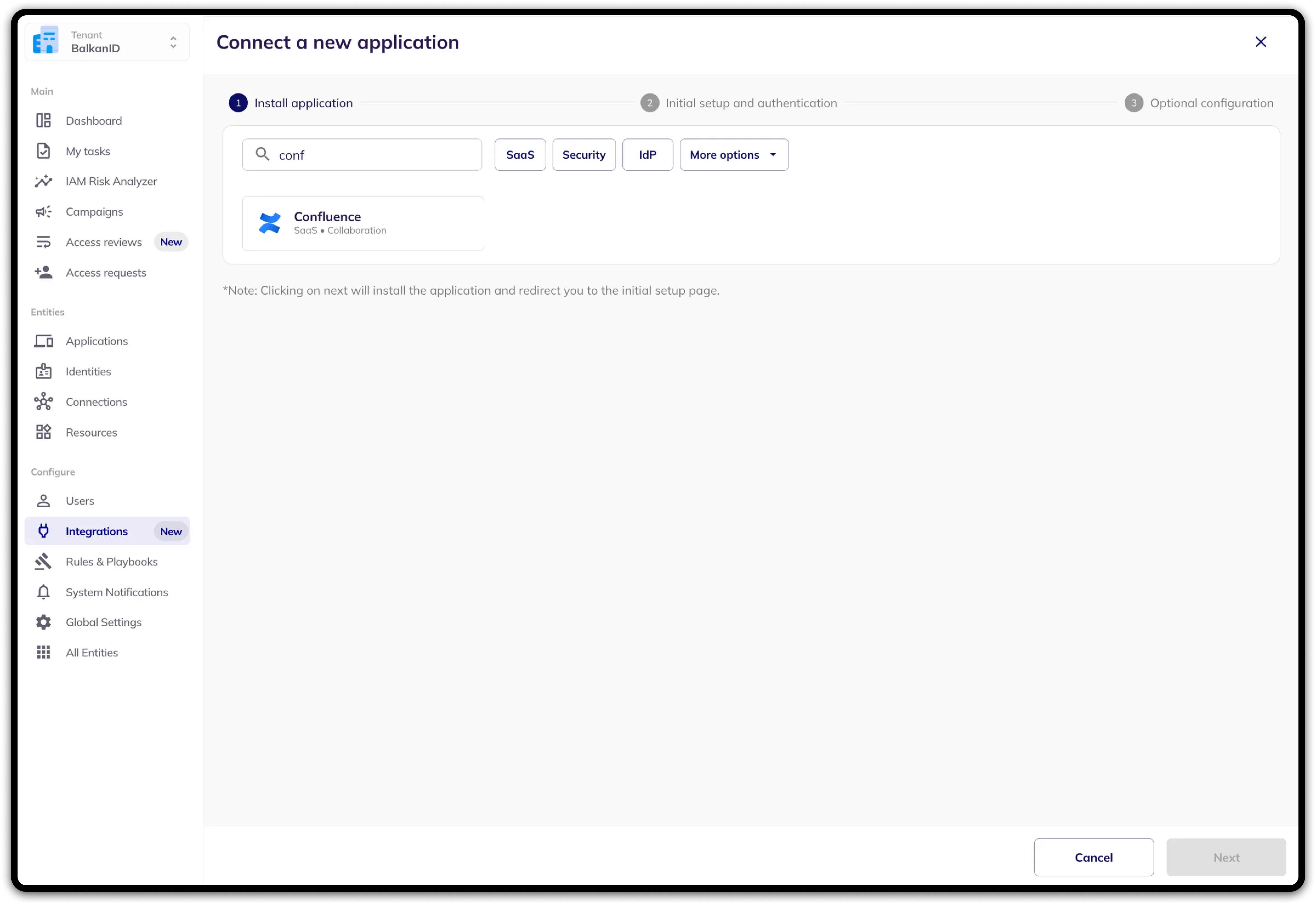
2. Head to *Integrations* > **Add Integration**, select **Confluence.**
3. Set up the *Primary Application owner (mandatory)* and the *Description*, if any. Set up Secondary Application Owner(s), if any.
Select the Extraction Type and fill in the fields for successful extraction.
From here, you can configure your application using one of the following methods:
1. **Direct integration** - Provide your API key, Domain Name and Email obtained above to set up a direct connection with BalkanID.
2. **SCIM integration** - Provide SCIM server credentials to set up a SCIM connection with BalkanID.
3. **Manual file upload** - Upload Entity and Entity Relations through a .CSV file upload. Contact the team for assistance with this.
4. **Automated upload using API -** You can upload data using our [Bulk APIs](https://developer.balkan.id/) with the help of an API key which will be provided to you. Please refer to the [entity](https://developer.balkan.id/bulk-entities-upload-api-early-access-12828095e0) and [entity relation](https://developer.balkan.id/bulk-entity-relations-upload-api-early-access-12828102e0) upload docs for specific instructions on uploading your data through the API.
4. Click on next to move onto *Optional Configuration.*
5. Fill **Optional configuration,** if required.
6. Once you filled in the information, click **Save**. Your integration is now configured and you will see the status of the integration displayed alongside other integrations on the *Integrations* page. When data is available, the integration Status will read **Connected** and the integration Message will read **Data available**.
---
# Agent Instructions
This documentation is published with GitBook. GitBook is the documentation platform designed so that both humans and AI agents can read, navigate, and reason over technical content effectively. Learn more at gitbook.com.
## Querying This Documentation
If you need additional information that is not directly available in this page, you can query the documentation by asking a question.
Perform an HTTP GET request on the following URL with the `ask` and `goal` query parameters:
```
GET https://docs.balkan.id/getting-started/setting-up-your-tenant/application-integrations/direct-application-integrations/atlassian-confluence-integration-setup.md?ask=&goal=
```
`ask` is the immediate question: it should be specific, self-contained, and written in natural language.
`goal` is what the user is ultimately trying to achieve, the reason they need the answer. Sharing it helps GitBook give you a better, more relevant answer. A goal is most helpful when it describes the outcome the user wants rather than restating the question. For example, with `ask=how do I create an API token`, a goal like `automate deployments from our CI pipeline` lets GitBook tailor the answer to that use case.
The response will contain a direct answer to the question and relevant excerpts and sources from the documentation.
Use this mechanism when the answer is not explicitly present in the current page, you need clarification or additional context, or you want to retrieve related documentation sections.