# Pagerduty Integration Setup
### Getting Started
BalkanID recommends creating a separate service account for the purposes of this integration, instead of using personal or employee named accounts.
#### Requirement:
* ***Access Token - A read-only account access token is required.***
#### Getting Access Token
1. Login to an *administrator/owner user* on your *PagerDuty account*
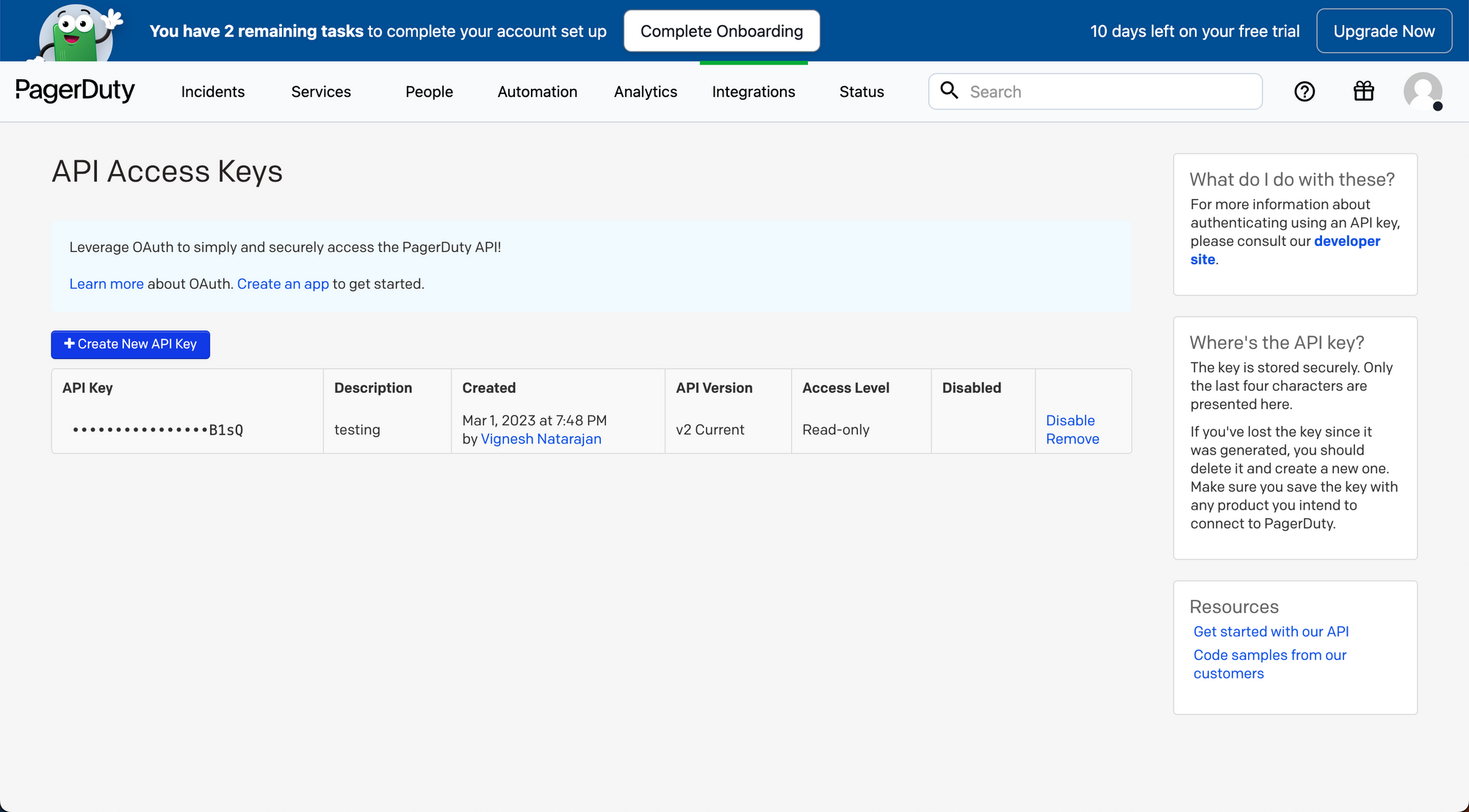
2. On the navigation bar, go to **Integrations > Developer Tools > API Access Keys** and click on it, you should see a page like this:
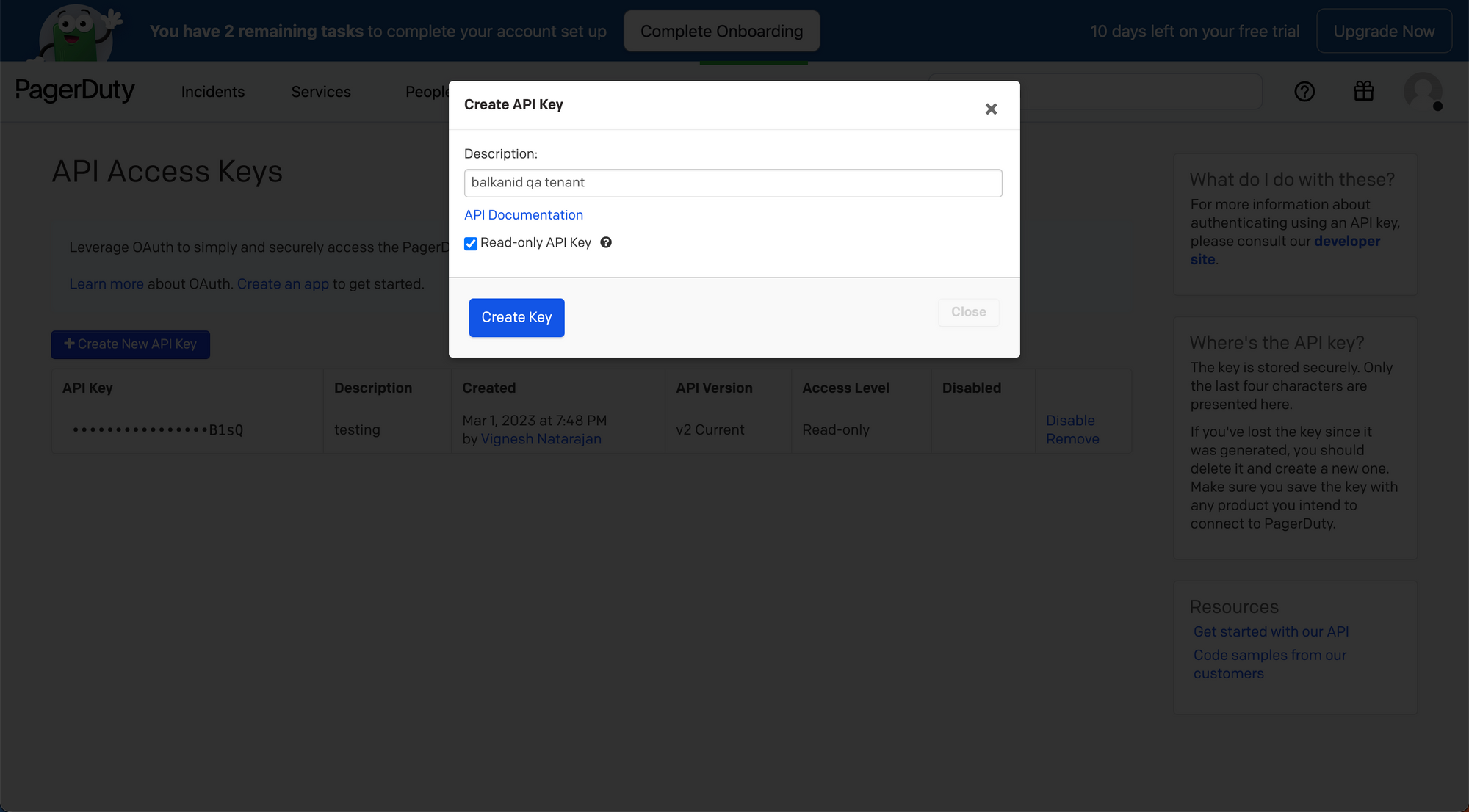
3. Click on “**Create New API Key**” and enter a description, make sure to check **Read-only API Key.**
### Configure Pagerduty within your BalkanID tenant
1. Login to the BalkanID application and switch to the tenant you would like to add your integration to.
2. Head to *Integrations* > *Third Party Applications* and click **Add Integration**, select **Pagerduty**. Set up the *Primary Application owner* and the *Description*, if any.
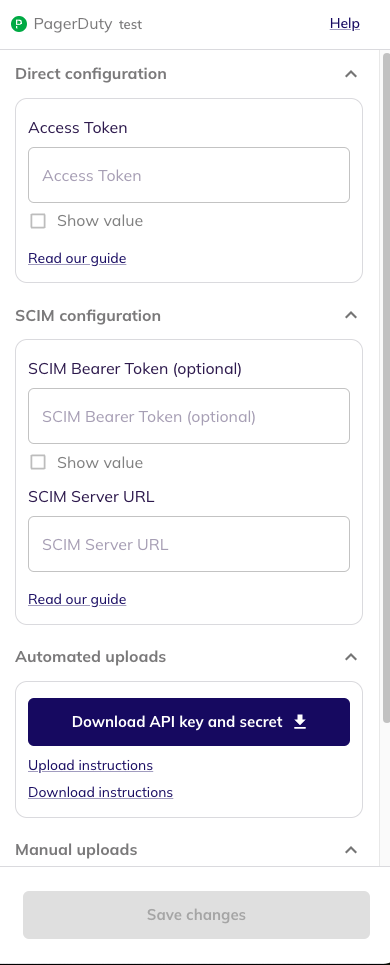
3. Pagerduty would have been added to the list of applications. Click on the **Configure and Integrate** button beside the integration name, and configure the fields with the values that were noted prior. It should look like this:
4. Once you filled in the information, click **Save changes**. Your integration is now configured and you will see the status of the integration displayed alongside other integrations on the *Integrations* page. Integrations are synced daily. When data is available, the integration Status column will read **Connected** and the integration Message will read **Data available**.
### Additional Notes
PagerDuty has an internal mapping between the values the API returns and what is displayed on the PagerDuty dashboard. Please refer to the following table for more information.
| **Title** | **Value** |
| ------------------- | ------------------------- |
| Global Admin | admin |
| Full Stakeholder | read\_only\_user |
| Limited Stakeholder | read\_only\_limited\_user |
| Manager/User | user |
| Responder | limited\_user |
| Observer | observer |
| Restricted Access | restricted\_access |
| Account Owner | owner |