> For the complete documentation index, see [llms.txt](https://docs.balkan.id/llms.txt). Markdown versions of documentation pages are available by appending `.md` to page URLs; this page is available as [Markdown](https://docs.balkan.id/getting-started/dashboard.md).
# Dashboard
The Dashboard provides a consolidated view of your organization's identity and access governance posture.This includes risk insights across identities, resources, and connections, providing a unified view of governance. It brings together live data from every application connected to your BalkanID tenant — surfacing risk, tracking access review progress, and monitoring entitlement activity — so security and IT teams can identify issues and act on them without navigating across multiple tools or pulling manual reports.
The Dashboard is organized into different sections. The **Summary Cards** give you an instant count of connected applications, total users, and identities across your environment. The **Risk Cards** rank your riskiest application integrations, employees, and departments by a weighted severity score, so you always know where to focus first. The **Findings Summary** shows the distribution of policy violations across detection rules and integrations, giving you both a high-level view and the ability to drill into specific findings. The **Access Review Activity** section tracks campaign progress over a configurable time window, while **Access Request Activity** shows the volume and type of entitlement requests submitted across your organization.
Together, these sections give security and compliance teams a single place to monitor identity risk, track governance activity, and prioritize remediation — updated in real time as your connected systems change.
## What's on the Dashboard
### Summary Tiles
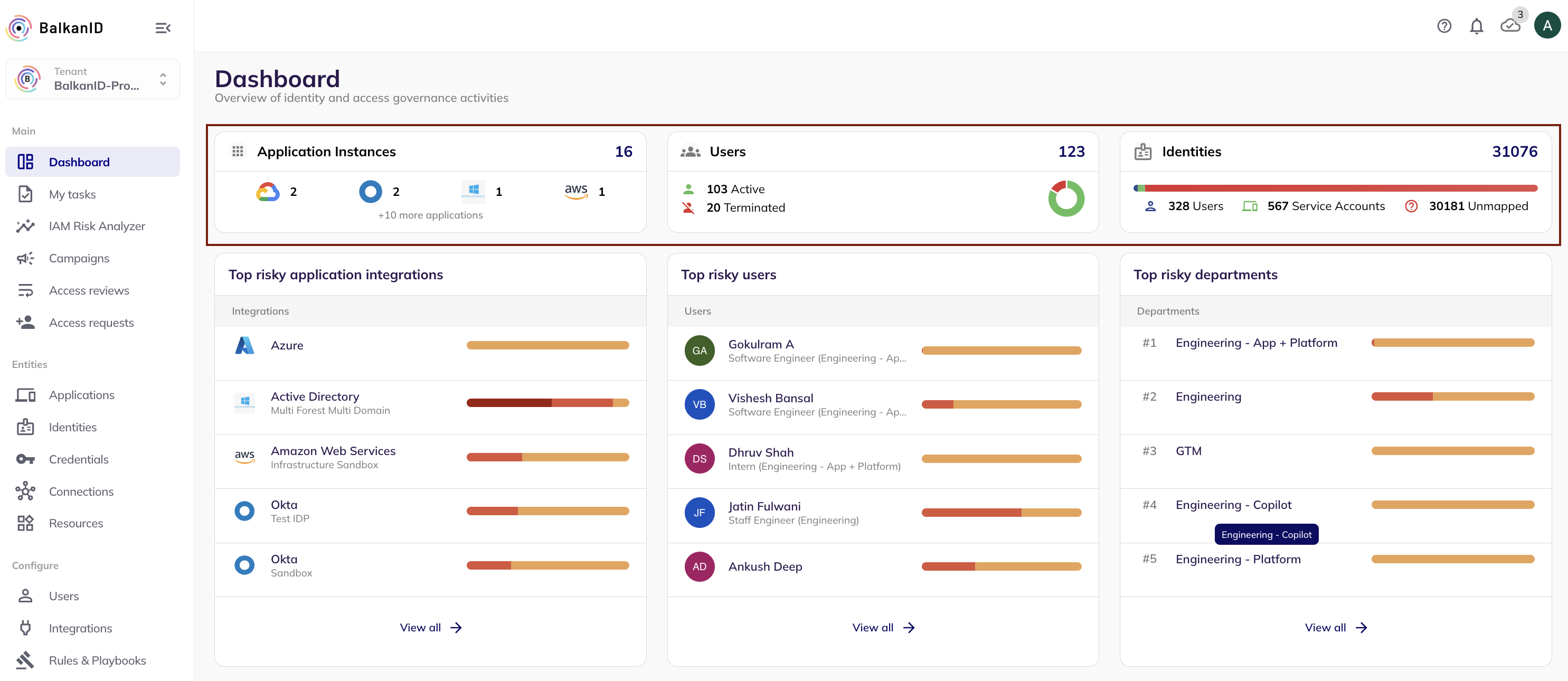
Three headline counters sit at the top of the Dashboard, giving you an instant measure of the scale of your environment:
* [**Application instances:**](/getting-started/setting-up-your-tenant/application-integrations.md) The total number of applications connected to your BalkanID tenant, with logos of top integrations and a count of additional connected applications.
* **Users:** Total employees in your HR directory, split between Active and Terminated, visualized as a donut chart.
* **Identities:** Total identities discovered across all connected systems, broken down into Users, Service Accounts, and Unmapped identities — those with no corresponding HR record.
### **Risk cards**
Three ranked lists surface the riskiest entities in your environment. Each card covers a different entity type: application integrations, users, and departments.
How risk is calculated
Each entity’s risk score is calculated as a weighted sum of associated findings, where higher severity findings contribute disproportionately to the overall score. The weights are:
* Critical — 10
* High — 5
* Medium — 2
* Low — 1
So an entity with two critical findings and one medium finding scores 22. Entities are ranked in descending order so the most at-risk always appear at the top.
Each row in the card shows:
* **Label** — the entity name (application name, employee name, or department name)
* **Sub-label** — contextual detail that depends on the card type: the integration description for applications, or the role and department for employees
* **Heat bar** — a color-coded bar running from red (critical/high severity) on the left to yellow (medium/low severity) on the right. Provides an immediate visual indication of whether the risk is driven by a small number of severe findings or a large volume of minor ones
The three risk cards are:
* **Top risky application integrations** — Top 5 risky connected apps
* **Top risky users** — Top 5 risky users
* **Top risky departments** — Top 5 risky departments
### **Findings summary**
A [finding](/iam-risk-analyzer/findings.md) represents a detected risk condition associated with an entity, such as an identity, resource, or connection.
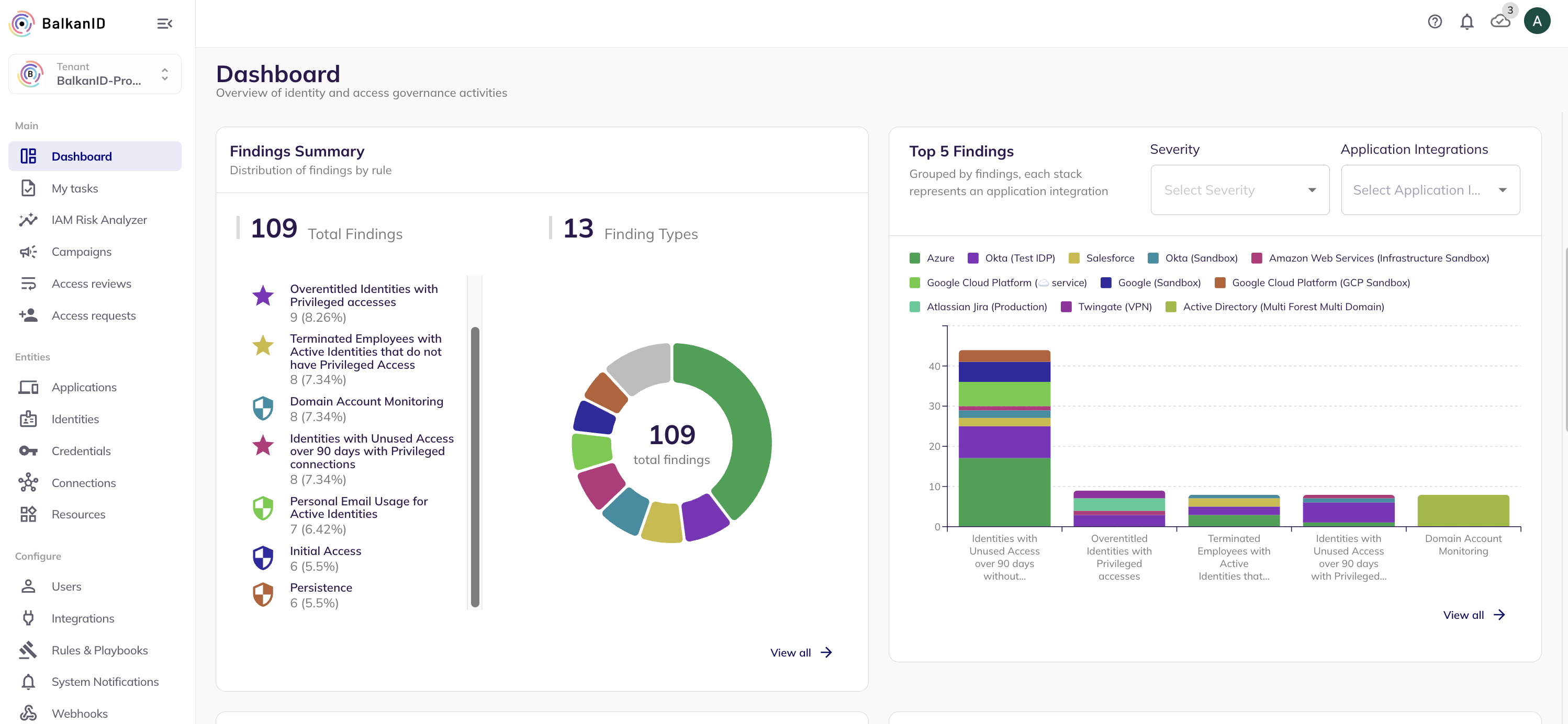
The Findings section shows the distribution and volume of policy violations and risk detections across your environment. Findings are generated across multiple entity types, including identities, resources, and connections—providing a more comprehensive view of risk.
* **Findings pie chart** — shows each detection rule's share of total findings. Rules contributing less than 5% of the total are grouped into an "Others" slice to keep the chart readable. Clicking on a segment of the pie chart filters the dataset and navigates to the relevant findings view for deeper investigation.
* **Findings stacked bar chart** — shows the top 5 finding rules by count, with each bar broken down by application integration. Each color segment represents a different connected app, so you can see at a glance which integrations are driving the most findings for each rule type. Use the Severity and Application Integration filters to narrow the view.
The total finding count and number of distinct finding types are shown as headline numbers above the charts.
### **Access review activity**
Shows campaign activity over a configurable lookback window. Use the **Timeframe** filter (week or month) and the **Time Period** filter (e.g. last 90 days) to adjust the window.
This section shows:
* Total number of campaigns run in the selected period
* Number of distinct campaign types (e.g. scheduled vs ad-hoc)
* A breakdown bar showing the volume of each campaign type over time
### **Access request activity**
Shows [access request](/lifecycle-management/access-requests.md) volume and composition.Use the **Timeframe** filter (week or month) and the **Time Period** filter (e.g. last 90 days) to adjust the window.
This section shows:
* Total number of requests submitted in the selected period
* Number of distinct request types
* A breakdown bar showing the split across request types: User, Purpose, Identity, Onboarding, and Offboarding
### Current State RBAC Risk Factor
The [Current State RBAC](/iam-risk-analyzer/rbac-analyzer.md) Risk Factor card gives you an application-level view of how your existing roles are distributed across risk tiers. Select any connected application from the dropdown to see its role risk breakdown instantly.
The card displays the total number of roles discovered for the selected application, alongside a count of roles classified based on role confidence distribution, where inconsistent assignment patterns (low confidence score) indicate higher risk. A donut chart visualises the full distribution, with each segment color-coded by severity level — Very High, High, Medium, and Low — so you can immediately see whether your role landscape is dominated by high-risk entitlements or is broadly well-scoped.
This view helps security and governance teams prioritize which applications need role rationalization first, and provides a baseline for tracking improvement over time as roles are cleaned up or redesigned.
**Key details shown:**
* **Total roles** — the number of roles BalkanID has discovered for the selected application
* **Very High Risk count** — the number of roles classified at the highest risk tier
* **Donut chart** — a visual breakdown of all roles by severity, with counts and percentages for each tier
* **Application filter** — switch between any connected application to see its specific risk profile
### Your Action Items
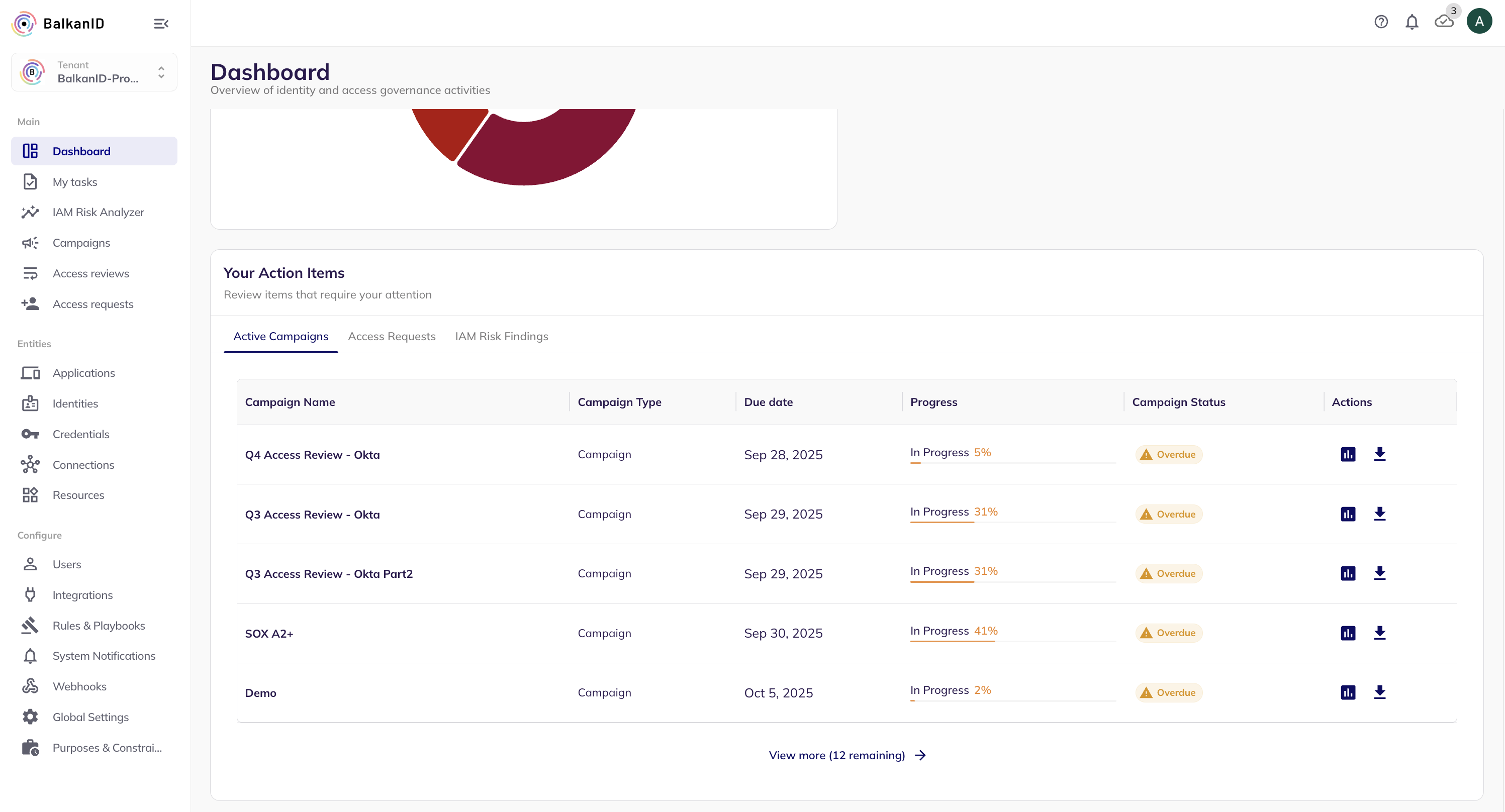
The Your Action Items section surfaces everything that requires your personal attention in one place, so you never need to hunt across the platform for tasks awaiting your action. It is divided into three tabs:
**Active Campaigns** lists every access review campaign currently in progress that has reviews assigned to you or your team. For each campaign you can see the campaign name, type, due date, completion progress, and current status. Campaigns past their due date are flagged as Overdue with a visual indicator. Two quick actions are available per row — view the campaign analytics, or download the campaign report. If there are more campaigns than are shown, a "View more" link at the bottom lets you load the full list.
Key details shown per campaign:
* Campaign name — the name of the access review campaign
* Campaign type — the type of review (e.g. Campaign)
* Due date — the date by which the campaign should be completed
* Progress — the current completion percentage, shown as "In Progress X%"
* Campaign status — current state, with an Overdue flag shown for campaigns that have passed their due date
* Actions — quick links to view campaign analytics or download a report
**Access Requests** shows pending access requests that are waiting on your approval or involvement, so you can approve, reject, or delegate without navigating to the Access Requests module.
Key details shown per request:
* Request type — category of request (e.g. Purpose Assignment, Offboarding Request, Reactivate Identity) with a descriptive sublabel
* Requester & reason — who submitted it and the business reason provided
* Application(s) — the connected application and instance the request relates to
* Employee — the person the access is being requested for, with their email
* Creation date — when the request was submitted and when access expires (if applicable)
* Status — current state (e.g. Pending)
* Reviews status — completion progress of the review chain (e.g. Pending 0%)
* Fulfillment option — how access will be provisioned upon approval (e.g. Direct Provisioning)
* Actions — quick-view icon to open full request detail and review history
**IAM Risk Findings** surfaces active risk findings assigned to you for remediation, giving you a direct line from the Dashboard to the findings that need your attention.
Key details shown per finding:
* Finding — the name of the detection rule that triggered the finding (e.g. "Identities with Unused Access over 90 days without Privileged Connections")
* Severity — the risk level of the finding: Critical, High, Medium, or Low
* Applications — integration logos showing which connected applications have identities affected by this finding
* Employees — the number of employees whose identities are implicated(where applicable)
* Identities — the total number of individual identities affected across all connected applications (findings may also relate to resources and connections)
* Actions — a quick-view icon to drill into the full finding detail, including the list of affected identities and recommended remediation steps
## Key features
* **Unified risk view:** Risk scores are calculated continuously across all connected integrations, so the dashboard always reflects your current posture — not last week's report.
* **Entity-level risk ranking:** See exactly which applications, employees, and departments carry the most risk, and understand whether that risk comes from critical findings or accumulated lower-severity ones.
* **Findings distribution:** Understand which detection rules are generating the most findings, and which integrations are the primary sources — without running a manual query.
* **Access review and request tracking:** Monitor campaign progress and request volumes over time, with flexible time period controls to match your review cycle.
* **Heat bar visualisation:** The severity heat bar on each risk card row gives an at-a-glance read on finding composition — no need to drill into individual records to understand the shape of the risk.
---
# Agent Instructions
This documentation is published with GitBook. GitBook is the documentation platform designed so that both humans and AI agents can read, navigate, and reason over technical content effectively. Learn more at gitbook.com.
## Querying This Documentation
If you need additional information that is not directly available in this page, you can query the documentation dynamically by asking a question.
Perform an HTTP GET request on the current page URL with the `ask` query parameter, and the optional `goal` query parameter:
```
GET https://docs.balkan.id/getting-started/dashboard.md?ask=&goal=
```
`ask` is the immediate question: it should be specific, self-contained, and written in natural language.
`goal` is optional and describes the broader end goal you are ultimately trying to accomplish on behalf of the user. GitBook uses it to tailor the answer towards what is most useful for that goal.
The response will contain a direct answer to the question and relevant excerpts and sources from the documentation.
Use this mechanism when the answer is not explicitly present in the current page, you need clarification or additional context, or you want to retrieve related documentation sections.